Contact sales now: info@ecommercetemplates.com
Ecommerce Templates > General Help > Cascading style sheets (CSS)
On the Ecommerce Templates we use cascading style sheets (css) to allow you to easily manage the various formatting properties. In the root of your web you will have a file typically called style.css and on each page a link to it like this <link rel=stylesheet type="text/css" href="style.css">
After double clicking on the file you should see some lines like this:
A:link {
color: #3366FF;
text-decoration: none;
}
A:visited {
color: #3366FF;
text-decoration: none;
}
A:active {
color: #3366FF;
text-decoration: none;
}
A:hover {
color: #FF9966;
text-decoration: underline;
}
The parameters are pretty clear, any hex value will suffice for the color and if you require an underline when the cursor passes over a link, change "none" to "underline".

The font type and size is also set in the css file, here's an example:
p {
font-size: 12px;
font-family : Verdana,Arial;
}
This means that all text that is between <p> tags will be Verdana, size 12 - if Verdana is not installed on the user's machine then it will revert to Arial. If you want to change the color of the text from the default then add a line like this for red text:
p {
font-size: 12px;
font-family : Verdana,Arial;
color: #CC0000;
}
This line of code will give you a blue horizontal rule, one pixel in height:
HR {
height: 0;
border-width: 1px 0 0 0;
border-style: solid;
border-color: #006AC8;
}
CSS classes allow you to vary your styles on a page, for example giving a section smaller text or different link properties - this can be really handy when for example you have light and dark backgrounds and you need your links to show up well on both. Here's an example of using a class for hyperlink properties:
A.dark:link {
color: #FFFFFF;
text-decoration: none;
}
A.dark:visited {
color: #FFFFFF;
text-decoration: none;
}
A.dark:active {
color: #FFFFFF;
text-decoration: none;
}
A.dark:hover {
color: #FF9966;
text-decoration: none;
}
This will give you white links with an orange mouseover. To apply it to individual links you'll need to add the class like this:
<a class="dark" href="mylink.html">link text</a>
To change text size or color between <p> tags you might have something like this:
P.smaller {
font-size: 11px;
font-family : Verdana;
color : #CC0000;
}
This will give you red 11 pixel size text when you add a class like this for a paragraph:
<p class="smaller">
If you are using a table based layout for the category page you can still use some css to tweak the display.
The first thing you will want to do is set up the category format that best suits your site, this involves adding a parameter to your vsadmin/includes.asp or vsadmin/includes.php files, depending on your version. Please note, these don't apply if you are using css based category, product and detail pages
Next thing to do is open your CSS file, this is found in the root of your store and is typically called style.css
Copy and paste these lines into the CSS file:
P.catname {
text-align: center;
margin-top: 0px;
margin-bottom:
4px;
vertical-align:top;
}
P.catdesc {
margin-top: 0px;
margin-bottom: 4px;
vertical-align:top;
}
IMG.catimage {
border: 1px solid #000;
vertical-align:top;
}
TD.catimage {
vertical-align:top;
}
TD.catname {
vertical-align:top;
text-align: center;
}
TD.catnavigation
{
vertical-align:middle;
text-align: left;
}
The classes explained
P.catname: The alignment of the category name
P.catdesc: The alignment of the category description
IMG.catimage: The properties of the category image
TD.catimage: The alignment of the category image
TD.catname: The alignment of the category name
TD:catnavigation: The alignment of the top category navigation
P.navdesc: The properties of the text "View all products in all categories". (introduced in version 4.9.0)
div.catdiscounts: The properties of the discounts text on the category pages. (introduced in version 5.2.6)
Some examples
Using the settings as listed above would show the category page as in the example here:
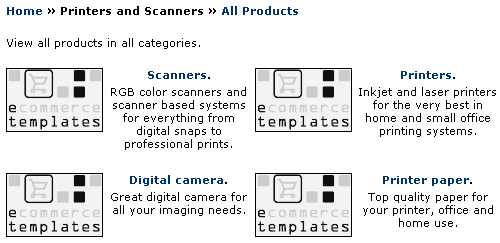
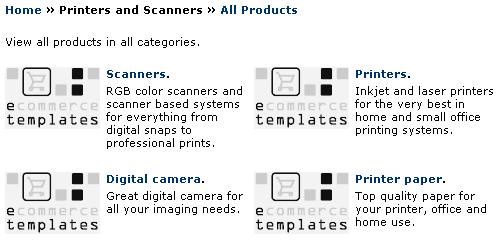
If you would like the titles and text left aligned and without an image border, the CSS would need to be changed like this:
P.catname {
margin-top: 0px;
margin-bottom: 4px;
vertical-align:top;
text-align: left;
}
P.catdesc {
margin-top: 0px;
margin-bottom: 4px;
vertical-align:top;
}
IMG.catimage {
border: 1px solid #000;
vertical-align:top;
}
TD.catimage {
vertical-align:top;
}
TD.catname {
vertical-align:top;
text-align: left;
}
TD.catnavigation {
vertical-align:middle;
text-align: left;
}
...and the layout would look like this:
To move the top navigation to the right, change
TD.catnavigation {
vertical-align:middle;
text-align: left;
}
to
TD.catnavigation {
vertical-align:middle;
text-align: right;
}
The best thing is to play around with the settings until you find the one that best suits your site. You can always come back here to get the default settings if you run into difficulty.
There are two CSS classes that can be used in conjunction with the mini cart and mini login. If you purchased a template with the mini cart incorporated then these classes should already be present in style.css, if not you can add these (Please note the class is called mincart
td.mincart {
font-size: 10px;
font-family : Verdana;
}
p.mincart {
font-size: 10px;
font-family : Verdana;
}
This will make the text size 10px and the font Verdana.
If you want different link properties from the rest of your main links, use something like this
a.mincart:link {
color: #069;
text-decoration: none;
font: 11px Tahoma, Arial, Helvetica, sans-serif;
}
a.mincart:visited {
color: #069;
text-decoration: none;
font: 11px Tahoma, Arial, Helvetica, sans-serif;
}
a.mincart:active {
color: #fff;
text-decoration: none;
font: 11px Tahoma, Arial, Helvetica, sans-serif;
}
a.mincart:hover {
color: #fff;
text-decoration: none;
font: 11px Tahoma, Arial, Helvetica, sans-serif;
}
In version 4.1.6 we added the possibility of changing the color of the price from the style sheet. All you need to do is add the following to style.css, this example would make the price show as red:
span.price {
color: #FF0000;
}
In version 4.2.0 we added the possibility of changing the format of the product options from the style sheet. All you need to do is add the following to style.css, this example would make the text show as red with Verdana 11px font:
select.prodoption {
font-size: 11px;
font-family : Verdana;
color : #FF0000;
}
If you are using stock management with the product options, introduced in version 4.4.0, it's possible to "grey out" the options which are no longer in stock by adding the following to your main style.css file
option.oostock {
color : #A0A0A0;
}
If you want to edit the text that introduces the product option then you need these classes (Version 5.2.2 required)
span.prodoption {
font-size: 11px;
font-family : Verdana;
color : #FF0000;
}
span.detailoption {
font-size: 11px;
font-family : Verdana;
color : #FF0000;
}
To format the multi-options introduced in version 5.5.0, use the following class
span.multioption {
font-size: 11px;
font-family : Verdana;
color : #FF0000;
}
This will change the text to red that accompanies the quantity boxes in the multi option feature on the product and product detail pages.
In version 4.6.0 we added the possibility of changing the format of the top product navigation eg. Home >> Product from the style sheet. All you need to do is add the following to style.css, this example would make the text show as red with Verdana 11px font:
td.prodnavigation {
font-size: 11px;
font-family : Verdana;
color : #A0A0A0;
}
P.prodnavigation {
font-size: 11px;
font-family : Verdana;
color : #A0A0A0;
}
In version 4.7.0 we added the possibility of changing the format of the page numbers from the style sheet. All you need to do is add the following to style.css, this example would make the page numbers show as Verdana size 12:
P.pagenums {
font-size: 12px;
font-family : Verdana;
}
In version 5.1 you can also change the appearance of the page number currently being viewed for example
SPAN.currpage {
color: #FF0000;
font-weight: bold;
}
...would show a page number bold and in red like this:

In version 4.7.0 we also included the possibility of changing the format of the alternative currencies. All you need to do is add the following to style.css, this example would make the currencies show in Verdana, size 10 and gray:
SPAN.extracurr {
font-size: 10px;
font-family : Verdana;
color: 666666
}
In version 4.9.0 we added some new classes which are specific to the product detail page:
div.detailid: The properties of the text "Product ID"
div.detailname: The properties ofthe product name on the product detail page
div.detaildiscounts: The properties of the discounts text for the product detail page
span.detaildiscountsapply : The Discounts apply text on the product detail page
td.detailimage: The alignment of the product image on the product detail page
img.prodimage: The properties of the product image
div.detaildescription: The properties of the text in the long product description
div.detailoptions: The properties of the product options on the product detail page
div.detailprice: The properties of the price on the product detail page
div.detailcurrency: The properties of the alternative currencies on the product detail page
In version 4.9.0 we added some new classes which are specific to the product page:
div.prodid: The properties of the text "Product ID"
div.prodname: The properties of the product name on the product page
div.proddiscounts: The properties of the discounts text for the product page
span.discountsapply : The Discounts apply text on the product page
td.prodimage: The alignment of the product image on the product page
img.prodimage: The properties of the product image
div.proddescription: The properties of the text in the short product description
div.prodoptions: The properties of the product options on the product page
div.prodprice: The properties of the price on the product page
div.prodcurrency: The properties of the alternative currencies on the product page
In version 5.0.0 we added the ability to show the number of items in stock in the products page. This is the class that governs the look of the entry.
div.prodinstock {
font-size: 10px;
font-family : Verdana;
color: 666666
}
In version 5.0.0 we added a new product layout, which by default should look something like this
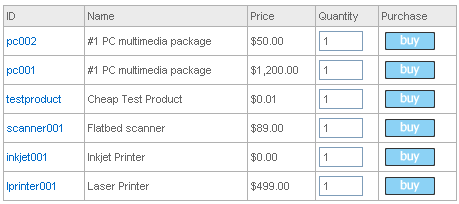
The set up of this layout requires the productbody3 setting in includes.asp or includes.php
These are the classes associated with the display
table.cpd - outer table background color which forms the outlines of the cells
td.cpdll - cell background
td.cpdhl - header background
div.cpdhlid - product id header
div.cpdhlimage - product image header
div.cpdhlname - product name header
div.cpdhldescription - product description header
div.cpdhldiscounts - discounts header
div.cpdhllistprice - list price header
div.cpdhlprice - price header
div.cpdhlpriceinctax - price including tax header
div.cpdhlinstock - number in stock header
div.cpdhloptions - product options header
div.cpdhlquantity - quantity box header
div.cpdhlbuy - buy button header
div.prod3id - product id properties
div.prod3name - product name properties
div.prod3discounts - discounts properties
div.prod3description - product description properties
div.prod3listprice - list price properties
div.prod3price - price properties
div.prod3pricetaxinc - price including tax properties
div.prod3instock - number in stock properties
div.prod3quant - quantity box properties
div.prod3buy - buy button properties
For example to have a table looking like this
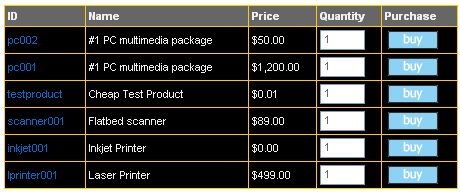
You would need to add this to style.css
.cpd {
background : #FFCC00;
}
.cpdll {
background : #000;
color: #F0F0F0;
}
.cpdhl {
background : #666;
color: #F0F0F0;
font-weight: bold;
}
It is possible to use different formatting for the cross selling features from that of the classes defined in the main product layout. You would need to add this
csstyleprefix="cs"
to vsadmin includes.asp or
$csstyleprefix="cs";
to vsadmin/includes.php
Then you would need to prefix the classes with cs so they only apply to the cross selling section like this
.csprodname {
font-size: 10px;
font-family : Verdana;
}
.csprodimage {
font-size: 10px;
font-family : Verdana;
}
In version 5.1.3 we added the possibility of editing the list price display, typically people would want to center the text like this:
div.listprice {
text-align: center;
}
Please note that the strikethrough and font color are set in vsadmin/inc/languagefile_en.asp / .php
For the product detail page the class would be div.detaillistprice and was added in version 5.2.6
Version 5.4 saw the introduction of adding a thumbnail image to the cart. This has its own class:
img.cartimage {
width: 100px;
border:1px;
}
Version 5.4 also saw the addition of a new class for all links in the store and they can be set like this:
A.ectlink:link {
color: #333;
text-decoration: none;
}
A.ectlink:visited {
color: #333;
text-decoration: none;
}
A.ectlink:active {
color: #333;
text-decoration: none;
}
A.ectlink:hover {
color: #8D2800;
text-decoration: none;
}
The SKU display introduced in Version 5.4 can be formatted like this for the product page:
div.prodsku {
color: #333;
}
... and for the product detail page:
div.detailsku {
color: #333;
}
The Manufacturer display was introduced in Version 5.5 and can be formatted like this for the product page:
div.prodmanufacturer {
color: #333;
}
... and for the detail page
div.detailmanufacturer {
color: #333;
}
If you want the same formatting on both the product and product detail page then just set the div.prodmanufacturer class.
These are the classes available for the product reviews and rating features introduced in Version 5.5.0:
span.review reviewheader (the title of the review)
span.review numreviews (the number of reviews and average rating)
span.review showallreview (the text properties for the "Show
all")
hr.review (the horizontal rule)
span.review clickreview (the text properties of the "Click
review")
span.review reviewname (the name of the person and date of review)
span.review reviewcomments (the comments left for the review of
the product)
To achieve the following layout
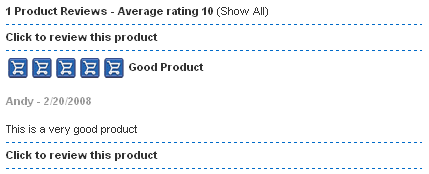
... add the following to your css file
.review {
color: #000;
font-weight: bold;
}
.showallreview, .reviewcomments {
color: #000;
font-weight: normal;
}
.reviewname {
color: #999;
font-weight: bold;
}
hr.review {
width: 100%;
text-align:left;
height: 0;
border-width: 1px 0 0 0;
border-style: dashed;
border-color: #006AC8;
}
In version 5.6.0 we introduced the ability to show the rating on the products page. The two new classes are
div.prodrating - the text of the rating
img.prodrating - the ratings image properties
There are two classes associated with the extra images. This for example will control the formatting of the text "1 of 5"
span.extraimage{
color: #CC0000;
}
and this just for the first number
span.extraimagenum{
color: #000;
}
The text associated with the giant image has two classes
.giantimgname{
background-color:blue;
}
will give the product name a blue background
.giantimgback{
background-color:yellow;
}
will give the "Back to product page" text a yellow background.
From version 5.7.0 there is a new class that can be applied to the cart button. One simple tweak would be to make the cart button line up nicely with the quantity box like this

.buybutton{
vertical-align:bottom;
}
You could also look to style the button through css.
The Gift Registry feature has the following css classes
span.cartloginname - the name of the person logged in
p.cartloggedin - the text for "Logged in as" and "Logout"
span.cartwishlists - the text for "View Gift Registries" on
the cart page
The List screen uses the same classes as the cart and other table backgrounds.
To show the product filter text and input box like this

... use the following css
td.prodfilter {
color: #44BA04;
font-weight:bold;
}
input.prodfilter {
border: 1px solid #44BA04;
background-color: #EDEDED;
}
These are the classes associated with the email receipt
.receiptbody - the background color of the email receipt
.receiptoption - the background color of the product option row
.receipthr - the horizontal rule
.receipthl - the highlighted product row
.receiptheading - the header row
For an email layout like this
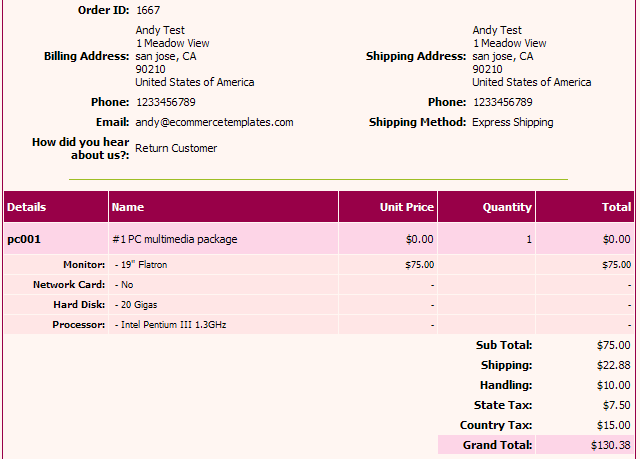
Use the following css
td.receiptbody{background-color:#FFF6F2;}
td.receiptoption{background-color:#FFE6E6;}
td.receipthr{height: 0;border-width: 1px 0 0 0;border-style: solid;border-color: #9EBE25;}
td.receipthl{background-color:#FDD6E8;}
td.receiptheading{background-color:#980048;color: #FFFFFF;font-weight:bold; }
For the thanks page to get a layout like this
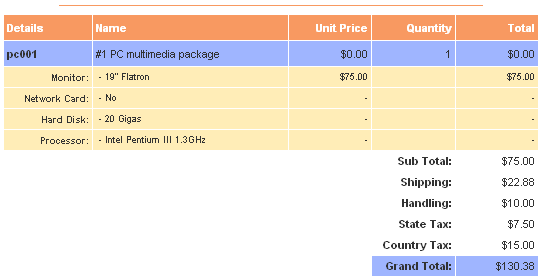
Use the following css
td.receiptoption{background-color:#FFEDB7;}
td.receipthr{height: 0;border-width: 1px 0 0 0;border-style: solid;border-color: #F89961;}
td.receipthl{background-color:#9FB5FF;}
td.receiptheading{background-color:#F89961;color: #FFFFFF;font-weight:bold; }
The class associated with the products filter bar is td.prodfilter
Use the following css
td.prodfilter{
background-color:#ececec;
border: 1px dotted #42619a;
padding:4px;
font-weight:bold;
color: #42619a;}
... to style the bar as in the example here

The Email a friend and Ask a question features can be formatted using the following classes...
table.emftbl - the main table
td.emfll - the header
td.emfhl - the main content
The gift wrapping feature in the cart can be formatted using the following class...
div.giftwrap
div.giftwrap{
border:1px dotted #0075C2;
background-color:#FFF;
padding:6px;
margin:2px;
font-size: 12px;
font-family : Arial,sans-serif;
}
There were two new classes introduced in Version 6.2.1 that are particulary useful for mobile versions of the cart
textarea.addinfo
This is the additional information textarea field on checkout. You may need to make this narrower for mobile screens, like this
textarea.addinfo{
width:150px;
}
The other class is on the left hand details column of the shopping cart contents
td..cobcol1
You may want to hide that column for mobile users like this
td.cobcol1{
display:none;
}
Sometimes we have had to hard code css styles to give a feature a basic layout. Examples of this would be the notify back in stock pop up or soft cart. We have tried to keep this to a minimum but there may be instances when you need to override these styles in your external css file.
For example the notify back in stock pop up div is set to a 570 pixel width
<div class="cobtbl notifyinstock" id="notifyinstockdiv" style="position:absolute;visibility:hidden;margin:2px;padding:2px;border:#EBEBEB 2px solid;width:570px;z-index:100;">
If you want to make that smaller set the following in your css file
div.notifyinstock{
width; 440px !important;
}
The div containing the text "You are only $xx from free shipping" can be formatted with the following class.
div.tofreeshipping{
font-size:16px;
}
if you want to change the font color use the following
div.tofreeshipping{
color: #000 !important;
}
The store generated buttons already have image equivalents available through the includes file.
With the release of Version 6.3.3 you can use css classes to style the buttons. The classes match the image parameters but without the "img" prefix. For example the affiliate login button as an image would be
$imgaffiliatelogin="images/affiliatelogin.gif";
The css class added to your css file would be
input.affiliatelogin
So if you wanted a rounded blue button with white text you might want to add something like this to your css file

input.affiliatelogin {
cursor: pointer;
padding: 6px;
text-align: center;
font-size: 105%;
font-weight: bold;
color: #fff;
background-color: #003471;
border: none;
border-radius: 10px;
}
The div containing the tags can be formatted with the following class.
div.searchwords{
border: 1px solid #ccc;
padding:6px;
}
The div for the header text can be formatted like this
div.searchwordsheading{
font-weight:bold;
font-size:16px;
line-height:28px;
}
The link properties use the ectlink class but that can be overridden by using something like this
a.searchwords{
margin-left:8px;
line-height:20px;
}
This will give you a layout like this

The display of the quantity pricing feature uses the following.
div.detailquantpricingwrap{
float:left;
width:100%;
}
div.detailquantpricing{
text-align:center;
margin:0 auto;
}
div.detailqpheading{
float:left;
padding:6px;
background:#999;
color:#fff;
width:300px;
}
div.detailqpheadquant{
float:left;
padding:6px;
width:140px;
}
div.detailqpheadprice{
float:left;
padding:6px;
width:140px;
}
div.detailqpquant{
float:left;
padding:6px;
width:140px;
}
div.detailqpprice{
float:left;
padding:6px;
width:140px;
}
Which will give you a layout like this
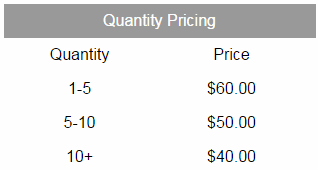
There are classes available for the Ask a Question and Email a Friend buttons as well as the general social media layout and individual buttons. The CSS used below would result in formatting like this

input.askaquestion, input.emailfriend{
background:#1F3284;
color:#fff;
height:21px;
border:0;
border-radius:4px;
font-size:12px;
cursor:pointer;
margin-top:7px;
}
The CSS used for the social media container is
div.socialmediabuttons{
float:left;
width:97%;
padding:4px;
border:1px solid #ccc;
margin:4px;
background:#dedede;
}
The css for the individual buttons uses something like this
div.socialmediabutton{
float:left;
width:140px;
}
div.sociallinkedin{
margin-top:7px;
width:70px;
}
div.socialfacebook{
margin-top:5px;
}
div.socialtwitter{
width:70px;
margin-top:7px;
}
div.socialgoogle{
margin-top:4px;
width:70px;
}
div.socialpinterest{
margin-top:4px;
width:60px;
}
div.socialcustom{
margin-top:7px;
width:70px;
}
div.socialaskaquestion{
width:110px;
}
We've only scratched the surface here but we strongly recommend the use of CSS, for further reading take a look at this excellent site: www.w3schools.com