
Contact sales now: info@ecommercetemplates.com
Ecommerce Templates > Payment Processors > Amazon Payments


Amazon Payments (Login and Pay with Amazon) was integrated into Ecommerce Templates shopping cart software in Version 6.5.3. It allows your customers to use their current Amazon account to purchase goods from your store. The customer would check out as normal and choose Amazon Payments as their payment method on the shipping and billing page. They would then be presented with a widget that contains their Amazon account address and card details to choose from. If successful the customer will continue on the store to choose their shipping preferences and then onto the confirmation page.
If you don't already have an Amazon Payments business account , you can sign up for a free Amazon Payments Account.
From the drop down choices there select "Login with Amazon"
From there you need to set your Application Information, including...
Name, Description, Privacy Notice URL and Logo Image.
...to find your "Client ID" under "Settings -> Web Settings".
Then under "Get API Access" you can find your AWS Access Key and Secret Access Key under "MWS Access Keys".
On this page you need to set the URL of your website under "Allowed Javascript Origins". For instance...
https://www.yourstoreurl.com/
And set the URL of your cart page under "Allowed Return URLs". For instance...
https://www.yourstoreurl.com/cart.asp
For the Seller ID you need to go to the following link...
https://developer.amazonservices.com/
Click on "Sign Up for MWS"
Sign in to your Amazon seller account on the left.
Click on...
I want to access my own Amazon seller account with MWS.
Once you have created your account, choose Edit Payment Providers in the store admin settings and click modify for Amazon Pay. Make sure the Enabled box is checked, and enter your Client ID, Seller ID, AWS Access Key and Secret Access Key. You should not enter your Amazon account password into any of the store fields.
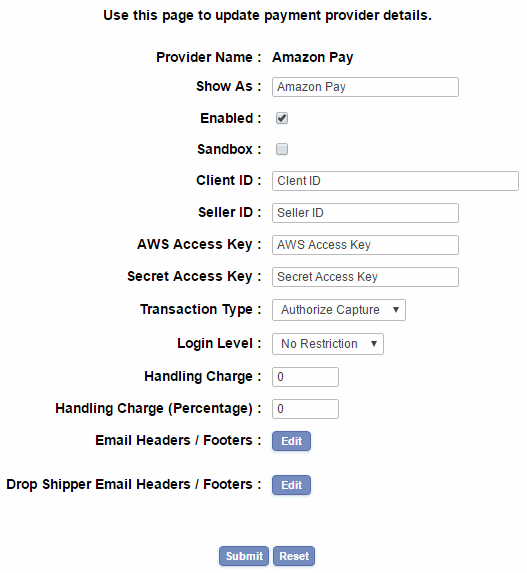
For the Transaction Type you will normally want to set this to Authorize Capture. This corresponds to Amazon's "Settle payments immediately" and means that the credit card will be charged at the time of purchase
For testing purposes (using the Amazon sandbox), you can put Amazon Payments into demo mode but remember to uncheck that box before going live with the store.
NOTE
For testing purposes you will need to use a different account from your seller account. This will either mean asking a colleague to try the checkout for you or setting up a new account using a different email address.