Step A: Copy files and set merchant name.
First you will need to download the ePDQ
zip file to your
hard drive.
You need to copy the files customppsend.asp and
customppreturn.asp from the vsadmin/inc/
directory of the download to the vsadmin/inc directory of your
site. Before doing so, open the
file customppsend.asp in notepad and at the top you will see the
line . . .
yourmerchantname = "SetMerchantNameInCustomppsend"
You need to change this to your merchant name which should be a
maximum of 30 characters.
Now copy the vsadmin/epdq directory and the file it contains to
the vsadmin directory of your
site.
Step
B: Confirm that the epdqconfirm.asp file works ok.
The file vsadmin/epdq/epdqconfirm.asp needs to know
what the database connection is, so needs
to "include" your database connection script. However,
different hosts have different ways of
configuring their security so we just have to check that everything
is ok. To do this just open
the file epdqconfirm.asp in your web browser by entering its URL
in your browser address bar.
For instance it could be . . .
http://www.yoursite.com/vsadmin/epdq/epdqconfirm.asp
What you should see is nothing. Just a blank page. If you receive
any script errors along the
lines of this . . .
The Include file '../vsadmin/db_conn_open.asp' cannot contain '..'
to indicate the parent directory.
. . . then we have to try a different approach. If this is the
case then open the file
vsadmin/epdq/epdqconfirm.asp in notepad and at the top you should
see . . .
<
!--#include file="../vsadmin/db_conn_open.asp"-->
and change that to
<
!--#include virtual="/vsadmin/db_conn_open.asp"-->
If your store is in a sub-directory then add the sub-directory
to the path like this . . .
<
!--#include virtual="/subdirectory/vsadmin/db_conn_open.asp"-->
If you STILL have an error, then replace the include line with
the actual contents of the
db_conn_open.asp file. In this unlikely case you will have to remember
that if you change your
database connection then you need to change it in the epdqconfirm.asp
file also.
Step
C: Protect the epdq directory with basic authentication.
Barclays ePDQ requires that the directory containing
your epdqconfirm.asp page is protected with
basic authentication. On a windows server you need to ask your
host to do this by sending your
host an email along these lines (obviously changing yoursite.com
as appropriate) . . .
Dear Host
As part of the implementation of the Barclays ePDQ payment processor
we need a directory on our
server username / password protected with basic authentication.
Could you possibly apply a
username / password to the directory
http://www.yoursite.com/vsadmin/epdq
Many Thanks
Once this is done, if you now try to open the epdq/epdqconfirm.asp
page in your browser you should
be prompted for your username / password.
Step
D: Configure the Ecommerce Plus settings.
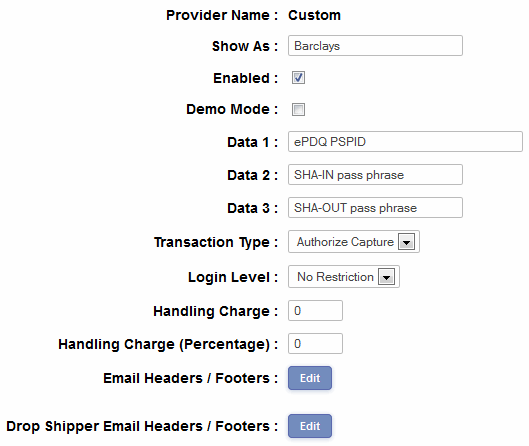
Log in to your ecommerce plus admin section and click on the "payment
providers" link on the
left. Now in the list of payment providers click on Modify for "Custom".

Enabled should be checked.
Demo Mode does not apply to ePDQ.
For Data 1 enter your ePDQ Client ID assigned to
you by Barclays.
For Data 2 enter a secret phrase up to 16 characters
known only to yourself. This can be
anything you like, and the more random the better. Make it
hard to reproduce . . . for
instance "my45secwet8189zs". Take a note of this
as we are going to enter this in the ePDQ admin
panel later.
For Transaction Type you should set "Authorize Capture" if
you want ePDQ to deduct funds
immediately from the cardholders account. You should set "Authorize
Only" if you want ePDQ to
check the cardholders card for availability of funds only. Later
using your ePDQ control panel
you will need to actually "capture" these funds.
Please note that it is now required in some
countries that you only use the Authorize Capture method if
you can ship immediately or have
obtained the cardholders agreement for any delay. Otherwise
use Authorize Only and "Capture" the funds when you can despatch the goods.
Step
E: Set your own Username and Password (Taken from ePDQ epdq_mandatory.pdf
guide).
You will require a separate user account to integrate
the ePDQ CPI with the Ecommerce Plus
template. This should be different to the account provided for
access to the Store Admin.
Your Store Admin user role is set at ePDQ Level 4. The URL you
need for your unique store admin
URL which was supplied by Barclays and which will be of the form
. . .
https://secure2.epdq.co.uk/cgi-bin/ClearCommerce_Engine/xxxxx
. . . where xxxxx is your store Client ID.
1. If you do not already have your Store Admin password login details
please contact the ePDQ
eCommerce Support team on 0870 60 80 355.
2. From the User Configuration Page (Please see the ePDQ User Guide
section "Controlling
Access to your Store for details), select Add.
3. The Add User page will be displayed. Enter
the details as required. The User ID must be at least 8 alpha/numeric
characters and can
be up to 32
characters. It must not contain any special characters (such as
*,/,\_,-). A User ID such
as CPIUser1 is recommended. The Password must be at least 8 alpha/numeric
characters and must not contain any
special characters.
. Enter the Password again for validation purposes.
. Enter a Password Prompt. This must not be your password and must
not compromise
the password (i.e. "same as user ID").
. Account Name and Account Description are optional, though entering
a name and
description such as "CPI Integration User" and "User
for CPI Access only" is
recommended.
. The Role is the level of permissions you wish to assign to the
user. Use the drop down
list to select the role of CPI Access.
. Set Pagination size according to how much data you wish to have
displayed on each page.
4. You should elect for an email to be sent to the merchant confirming
the creation of a new user.
5. Once you have entered all the details correctly, select Add.
If you have entered any details
incorrectly and wish to clear all fields, select Reset.
6. The new user will now be created, and can be viewed from the
User Configuration Page.
7. Log on as the new user to confirm the user had been created
correctly.
8. Sign off from the engine.
Step
F: Setup the ePDQ Configuration Pages.
Log in to the following URL using the login / password you have
created.
https://cpiadmin.epdq.co.uk/cgi-bin/CcxBarclaysEpdqAdminTool.e
You want to fill out the form with the following information.
Client ID: As supplied by Barclays
User name: The one you used to log in with
Password: The one you used to log in with
Pass-phrase: A secret phrase you choose up to 16 characters. This
should be the secret phrase
you used for "Data 2" in the ecommerce plus payment provider admin.
Allowed URL: The URL of your Ecommerce Plus cart page. For instance it could
be
http://www.yoursite.com/cart.asp
Continue Option 1: Probably best set to no, but see your ePDQ documentation
for more details
Continue Option 2: Probably best set to no, but see your ePDQ documentation
for more details
Continue Option 3: Probably best set to no, but see your ePDQ documentation
for more details
POST Order result: Yes
POST URL: The URL of your epdqconfirm.asp page. This will be something like
http://www.yoursite.com/vsadmin/epdq/epdqconfirm.asp
POST User name: The username used to protect the directory containing your
thanks.asp page
POST Password: The password used to protect the directory containing your thanks.asp
page
POST Email: Merchants email address
Step
G: Testing.
Barclays ePDQ does not provide a test mode as such.
You can use the following Visa number
4111111111111111
. . . with the expiry date . . .
12/2004
Which will always result in a DECLINED result. However there is
not a way to generate a SUCCESS
result except by trying a real live transaction with your credit
card. In this case Barclays
recommend you set up a test product with the price £11.11
so that it is easy for them to cancel
the order.
Please do read our guide here on credit
card fraud.
That's all there is to it really - any comments on the set up can
be posted on our Support Forum.
|