
Contact sales now: info@ecommercetemplates.com
Ecommerce Templates > General Help > The Control Panel > Mailing List
Version 5.4 saw the introduction of the mailing list / newsletter feature. This allows your customers to sign up for the mailing list through their client login account or on checkout and have their email details stored for later use. It is also possible to place a sign-up box on each of your pages with the mini css widget.
The first screen you will see when clicking on the Mailing List link in the admin home page should look like this:
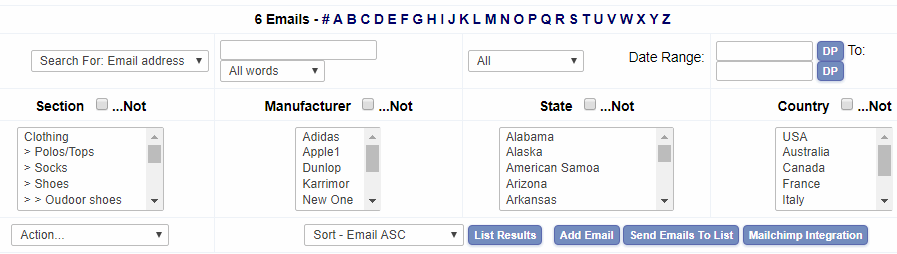
From this screen you can list or search for members, add new entries and send out your newsletter. From Version 6 you can send mails to groups based on product ordered, product category of product ordered, geographical location, wholesale / non-wholesale attributes or manufacturer of product purchased.
Click on "List Results" to see all the emails from customers who have signed up.
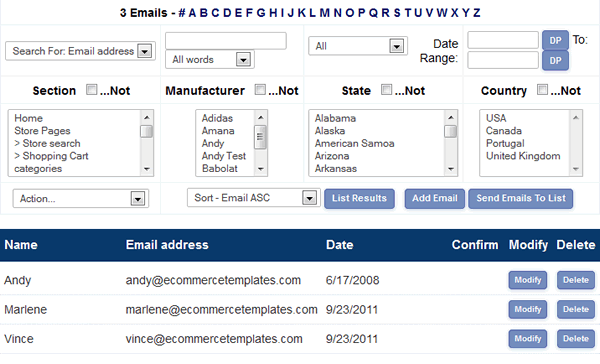
You will see a "Confirm" button if the client hasn't confirmed their email address yet and when you send out the newsletter, they will not receive the email. To send out your newsletter, click on "Send Email to List".
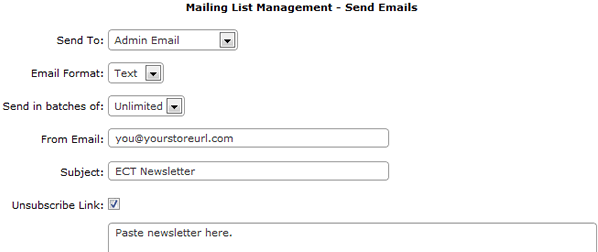
The screen explained
Send To:
Email Format
Send in batches of
From email - the email address you want the newsletter sent from
Email Subject - the subject line of the email.
Unsubscribe Link - this will add the URL of the unsubscribe link to the email. If the customer follows the link in the email, they will automatically be deleted from the mailing list.
Note: from version 5.7.0 it is possible to address the recipient by name, by beginning the email with something like Dear %name%
In Version 6.0.5 we added the ability to export the mailing list to a csv file. This allows you to collect email subscribers through your store and then import them into your favorite email marketing suite such as ActiveCampaign, ContactContact or iContact
You can choose to export the complete mailing list or selected emails to a csv file. This can then be uploaded to your email marketing system where you can match the fields included in the export; email address, full name, ip address and date of subscription.
From Version 6.6 it is possible to import a mailing list. The CSV upload file must have the first two columns as...
Email,Full Name
Any other columns will be ignored
To import the csv file go to Product Admin > CSV Upload
.For "Add to Database" or "Update Database", the action is the same so it doesn't matter which you choose. If the email exists, the name is updated. If not then it is added along with the name and the email is set to confirmed.
By default the customer will receive an email to confirm / verify their newsletter sign up. This will contain a link to follow to complete confirmation. If you prefer the customer not to receive this mail then you will need this addition to vsadmin/includes.asp or vsadmin/includes.php
The text informing the customer of the arriving confirmation email can be edited in vsadmin/inc/languagefile_en.asp or languagefile_en.php - copy it to vsadmin/includes.asp / .php so it doesn't get overwritten by updaters.
If you want to show a drop down or radio buttons on checkout where the customer explicitly needs to opt in or opt out of signing up the newseltters you will need this addition to vsadmin/includes.asp or includes.php (Version 6.9.2 required)