Contact sales now: info@ecommercetemplates.com
Ecommerce Templates > General Help > Searching
You have already probably seen the inbuilt search feature in Ecommerce Templates but we have taken that further with some tweaks and tips below
In Version 6.5 we removed all the tables and replaced them with css resulting in meaner leaner code. It has also added a huge amount of flexibility to the layout with numerous css classes available so you can really personalize your search form. Naturally it’s responsive ready so will work great on responsive designs.
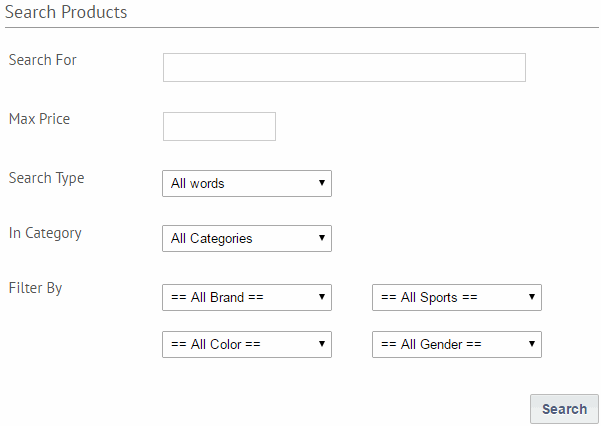
Apart from tweaking the css you can also change the filter display via the includes file. There are three parameters available which will remove the filter count shown by default in parenthesis, remove the product attribute search filters entirely and the option to only show the manufacturer filter.
You can use these in vsadmin/includes.asp
nocountsearchfilter=TRUE
nosearchbyfilters=TRUE
onlysearchfiltermanufacturer=TRUE
or includes.php
$nocountsearchfilter=TRUE;
$nosearchbyfilters=TRUE;
$onlysearchfiltermanufacturer=TRUE;
If you want to remove the Max Price display, you would add this to your css file
div.searchprice_cntnr{display:none}
If you want to remove the Search Type feature, you would add this to your css file
div.searchtype_cntnr{display:none}
If you want to remove the In Category feature, you would add this to your css file
div.searchcategory_cntnr{display:none}
Copy and paste these lines where you need the box to appear:
<form method="post" action="search.asp">
<input type="hidden" name="posted" value="1"/>
<input type="text" name="stext" size="16"/><br/>
<input type="submit" name="search"/>
</form>
Tips
Change search.asp to search.php for the PHP version
To search only within one category (In this case category 14) add
<input type="hidden" name="scat" value="14"/>
To search within several categories add:
<input type="hidden" name="scat" value="14,15,16">
To use an image instead of the grey submit button change
<input type="submit" name="search"/>
to
<input type="image" name="submit" src="images/search.gif"/>
To remove the search box from the results add
<input type="hidden" name="nobox" value="true"/>

If you want to set up a simple link to search products priced between 100 and 200 you would need something like this:
<a href="search.php?pg=1&sminprice=101&sprice=200&nobox=true">100 - 200</a>
If you want to show a drop down menu of options then use the code below:
This goes before the closing </HEAD> tag
<script language="JavaScript" type="text/JavaScript">
<!--
function MM_jumpMenu(targ,selObj,restore){ //v3.0
eval(targ+".location='"+selObj.options[selObj.selectedIndex].value+"'");
if (restore) selObj.selectedIndex=0;
}
//-->
</script>
...and this goes where you want the drop down menu to appear...
<form name="form1">
<select name="menu1" onChange="MM_jumpMenu('parent',this,0)">
<option value="#" selected>Please select</option>
<option value="search.php?pg=1&sminprice=0&sprice=10&nobox=true">under
10
<option value="search.php?pg=1&sminprice=10&sprice=100&nobox=true">10
- 100
<option value="search.php?pg=1&sminprice=101&sprice=200&nobox=true">101
- 200
</select>
</form>
Rather than linking to complete categories, it is possible to narrow down the results returned by specifying the keyword in the search string. This is particularly useful if you want to pull specific words out of categories. For example this link will show all Dreamweaver products in category 12 with no search box (see below for an explanation of the available parameters).
search.asp?pg=1&stext=Dreamweaver&scat=12&stype=exact&nobox=true
stext: The text to be searched on
scat: The category number to be searched in, use commas between the numbers to search on multiple categories eg scat=12,13,14
stype: Can be any, exact or all
nobox=true: This will remove the search box from the search results page
sminprice: The minimum price parameter
sprice: the maximum price parameter
sman: This is to search by manufacturer eg, sman=xx - where xx is the id (Version 5.4 required).