Contact sales now: info@ecommercetemplates.com
Ecommerce Templates > General Help > Stock management program
The Ecommerce Plus templates incorporate a handy stock management program. This allows you to set the number of items in stock and when the last item is added to the cart the "Buy" button is replaced by an "Out of Stock" message or the poroduct will be removed from the listing, as you prefer.
If your store is down to the last item in stock it will allow more than one person to add the item to cart but it will be the the first person to check out who will be able to purchase. If the other person also attempts to checkout then they will be warned that the item is no longer available and update the cart contents accordingly.
The number of items left in stock is shown in the product admin
section - each product will have a number after it like this:
PC Keyboard (6)
The number will decrease with each sale.
It is necessary to "turn on" the stock management in your Main Admin
page to use this feature.
You can use stock management on product options
as well as on the overall product. On
the products admin page if you are using stock management you should
see a drop down menu Which allows you to choose between "In
Stock" that will set the stock level for the overall
product and "By Options" which will set stock levels
by the stock of the product options.
An important thing to note is that if you share an option between
2 products the options stock is shared between 2 products. This
could be useful if you have say only 20 disk drives, each of which
could go in one of 5 different models of PC. However, if this is
not what you intend then on the product options admin page we have
also provided a "Clone" button to quickly create a copy
of one product option. Using the Option Working Name you will also
be able to distinguish these internally.
Stock management will indicate if a request to add to cart can only be partially completed. For instance if someone wants 10 of an item, but only 6 are available. The number of items in stock can be shown on the products page with an addition to includes.asp / includes.php It is also possible to not show out of stock products on the products page but keep them in the products admin page for future use.
This feature was introduced in Version 6 and allows the customer to be notified by email when the stock is again available. To enable this feature you will need to be using the stock management feature and add the following to vsadmin/includes.asp
notifybackinstock=TRUE
or to vsadmin/includes.php
$notifybackinstock=TRUE;
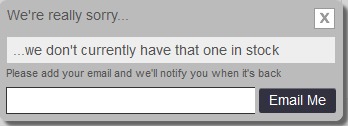
This will change the "Out of Stock" message to a clcikable link that will bring up a window looking like this
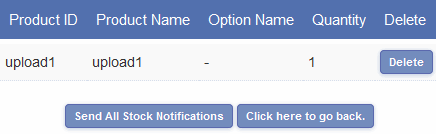
Each time a customer uses this feature the request is recorded in the store control panel. The number of requests is available in the dashboard and the details of the products are also viewable
The email that the customer receives can be formatted through the email messaging admin page. The pop up window the customer sees uses the same css classes as the cart, search etc. The "Notify Me" link can be changed to an image through the includes.asp or includes.php file.
If you find that orders are remaining out of stock after the time stipulated in the main admin settings then go to the admin orders page and do a search for unauthorized and cancelled orders and delete all of them. Then hit the "purge deleted" button and that will free up the stock again.