
Contact sales now: info@ecommercetemplates.com
Ecommerce Templates > PHP Version Help > Cross selling / Upselling

These are the instructions for the PHP Version of the cross selling feature. If you are using the ASP version, you will need the ASP cross selling set up page.
The cross selling / upselling feature allows you to show on your store recommended, best selling and related products as well as any items also purchased by previous customers. This feature is particularly useful for upselling products and is extremely flexible and configurable.
The first thing you will need to do is open the file cart.php and find the line
<?php include "vsadmin/inc/inccart.php" ?>
...and just after that add the line
<?php include "vsadmin/inc/inccrosssell.php" ?>
Save cart.php
Now you need to define the features you want to appear on the cart page so open includes.php and add this to the list
$crosssellaction='recommended,related,alsobought,bestsellers';
This will show the four features in the order shown there. If for example you only wanted to show bestsellers and related products in that order then you would change the line to
$crosssellaction='bestsellers,related';
Save the file includes.php and then you can start configuring the four features.

This will add a row of recommended products that you have chosen from your inventory to display on the cart page once any item has been added to cart. The number of recommended products you choose to show is completely up to as each one you check in the products admin page will appear here.
To configure a recommended product, in your Ecommerce Template control panel click on products admin and then click "Modify" for the product you want to show as recommended. At the bottom of the page there is a checkbox like this:
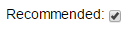
Check the box if you want it to appear as a recommended product when any other product is added to the cart.
From Version 6.6 it is possible to define how many recommended products you want to display regardless of the number of products checked in the product admin page and to randomize the products shown if required. For example to randomize the products and display nine items you would use the following...
$orsortby=13;
$crosssellsectionmax=9;
Related products are ones that you configure through the product admin page. They will typically be products that customers who have added a similar / complimentary item to cart would be interested in. That may be something like batteries for an electronic device, a superior model to the one already in the cart or simply an extra item that you think would be of interest to somebody who is planning on purchasing. Each related product will be displayed in rows below the cart.
In your Ecommerce Template control panel click on products admin and then for the product you want to create relations for click on the "related" button. If this is the first time you are setting up a relation then you will see a message there are no related product so then click on "List Products" and you should see a screen like this where you can select the product which can be related to the item you have selected.
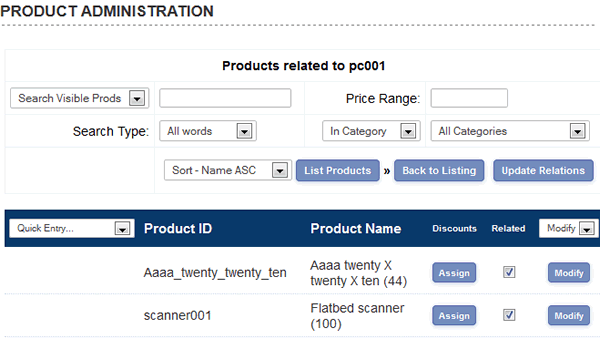
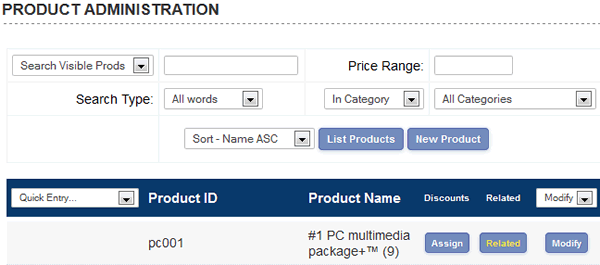
Check the boxes which you want to relate to the original product and then click on "Update Relations". Now click on "Back to Listing" and the "Related" button should now show with red text to indicate that it has related products configured.
Now when somebody adds the product to cart (the Professional scanner in the example above), products you have configured as related will be shown on the cart page.
This handy feature will show products that were bought by previous customers in conjunction with the item(s) already added to the cart.
There is no configuration necessary for this feature as any products previously purchased by customers who also bought the item added to the cart will be shown on the cart page.
These are simply the best selling items in your inventory.
There is no configuration necessary for this feature as the best selling products are dynamically pulled from the database and will be shown on the cart page.
If you want to limit the best seller date range to a specific number of days, add the following to vsadmin/includes.php
$bestsellerlimit=180;
... where 180 is the number of days in the range (Version 6.2.1 minimum)
From ECT Version 7.0.4 it is possible to display related items in the soft cart. These would be items that are typically purchased with the item already add to the cart. If you haven't done so already you will first of all need to set up the related products in your product admin page of the store control panel.
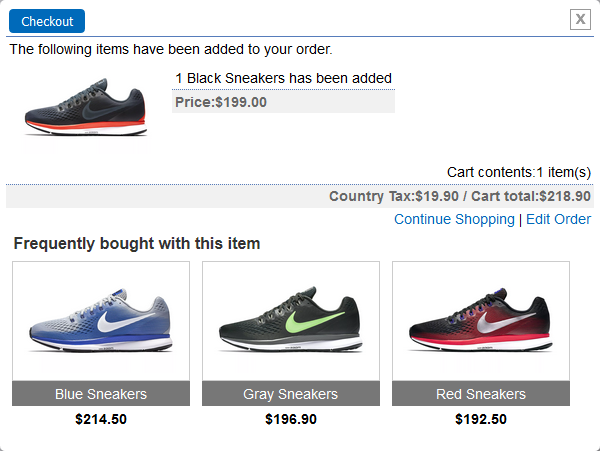
You then need to decide which elements to display for each related product in the cart, you would do this by adding the following to your vsadmin/includes.php page
$softcartrelated=TRUE;
$screlatedlayout="productimage,productname,productid,description,price";
To add an introductory header use
$softcartrelatedheader="Frequently bought with this item";
so for example if you wanted to show only the product image followed by the name and price that would be
productimage,productname,price
You can also change the order of the elements if you wanted to
Now the features have been set, you will probably want to tweak how they show on your cart page. Open the files includes.php and add the parameters below depending on the display you require...
$csnobuyorcheckout=TRUE;
This will remove the buy and checkout buttons from the display$csnoshowdiscounts=TRUE;
This will remove the red discount text from the display$csnoproductoptions=TRUE;
This will remove the product options from the display
If you want to change the default text that introduces each of the features then you can make this addition to includes.php
$csrecommendedtitle='Your recommended title';
$csalsoboughttitle='Your also bought title';
$csrelatedtitle='Your related title';
$csbestsellerstitle='Your best seller title';
You can also tweak the CSS if you need to make changes that are specific to the layout here and not effect the main product page display. You would need to add this
$csstyleprefix="cs";
to vsadmin/includes.php
Then you would need to prefix the classes with cs so they only apply to the cross selling section like this
.csprodname {
font-size: 10px;
font-family : Verdana;
}
.csprodimage {
font-size: 10px;
font-family : Verdana;
}
You can add related, recommended and best selling products to pages other then the cart page. For example, if you would like to show them on your product detail page then place
<?php include "vsadmin/inc/inccrosssell.php" ?>
... just after the line
<?php include "vsadmin/inc/incproddetail.php" ?>
If you only want related products on the product detail page then add this after the incproddetail include line
<?php
$crosssellaction='related';?>
<?php include "vsadmin/inc/inccrosssell.php" ?>
In version 6.7 you can choose which elements to display in the cross selling with the following in includes.php
$csproductpagelayout='productimage,productname,options,price,addtocart';
..where you can choose any of the elements from the product page layout to add to the list.
The Cross Selling functionality can be easily added to your WordPress store or Home Page using the [ect_crosssell] shortcode. There are more details here...