
Contact sales now: info@ecommercetemplates.com
Ecommerce Templates > PHP Version Help > Payment Processors > eProcessingNetwork

Click here to create an account with eprocessingnetwork.
The set up for eProcessingNewtwork uses their Authorize.net emulator so the set up is quite simple. The credit card details are taken on your own site so you will need a SSL certificate installed (either your own or shared from your host). You do not get to see the credit card information as that is stored on the eprocessingnetwork side of things, not in your order admin.
You can follow our instructions here for setting up on a secure server and then you are ready to start the integration.
In your eprocessingnetwork admin section go to the page labeled Processing Control and scroll down the page till you see the option for Generate RestrictKey. Save the Generated Key as you will need it in the Ecommerce Template control panel.
In your Ecommerce Template admin, go to the Payment Providers section, click "Modify" for Authorize.net (AIM) and enter your User ID and Restrict Key in the fields for Merchant Login ID and Transaction Key respectively.
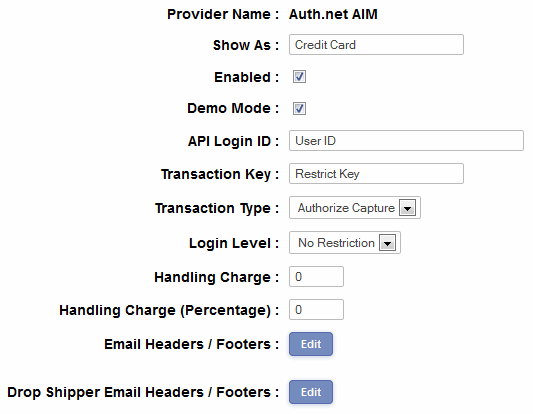
Hit the submit button and you are nearly finished.
The final step is to open vsadmin/includes.php in Notepad and add this line
$authnetemulateurl="https://www.eProcessingNetwork.Com/cgi-bin/an/order.pl";
Save includes.php and you should be ready to start testing.
Please do read our guide here on credit card fraud.
For more information, rates and support, please visit the eProcessingNetwork website.