
Contact sales now: info@ecommercetemplates.com
Ecommerce Templates > PHP Version Help > Payment Processors > Moneris

Once you have created your account with Moneris the first thing you will need to do is download the file monerisphp.zip from our downloads page. The zip file contains two files, customppsend.php and customppreturn.php. These contain all the information you need for the Moneris eSelect Plus integration for the ecommerce templates. Unzip the download and place the two files in your vsadmin/inc/ folder, overwriting the existing files - agree to overwrite if prompted.
Make sure you have uploaded these two files to your server and open your ecommerce template admin payment providers page. Locate the payment provider listed as "Custom" and click on the Modify button.
You can start by placing the processor in demo mode. In Data 1 place store1, store2 or store3. Data 2 is the Hosted Paypage Token (hpp_token) that you generate on the Hosted Paypage Configuration admin page at the Moneris site.
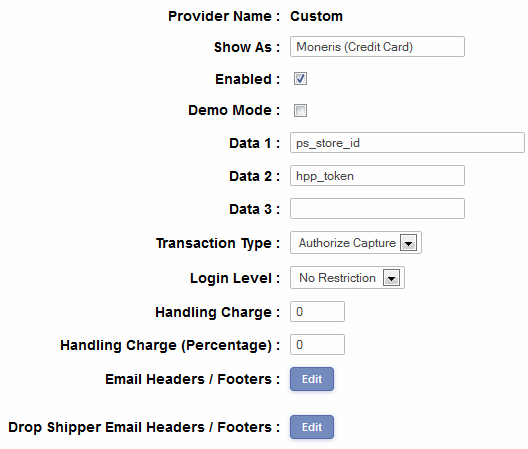
You can test the system with the dummy visa card number 4242424242424242 and any expiry date in the future.
You can check your test results here https://esqa.moneris.com with the store_id store1, store2 or store3 depending on which one you chose to use, Username: DemoUser, Password: password.
NB
In demo mode you may find that you receive a message that the order id has
to be unique, this happens because you are testing your store with many other
users in their test environment and it's quite probable the order id has
been used before by somebody else testing.
To move into production mode, uncheck the demo mode option and place your unique ps_store_id in the box for Data 1.
If you receive a sorry message on thanks.php
On your Moneris configuration page in the section . . .
Hosted Paypage Response Methods -> Response Method: ->
. . . make sure you have checked . . .
Sent to your server as a POST
Please do read our guide here on credit card fraud.
That's all there is to it really - any comments on the set up can be posted on our Support Forum.