Contact sales now: info@ecommercetemplates.com
Ecommerce Templates > General Help > Using Expression Web
Once you have downloaded your zip file you'll need to double click on it and extract the contents of the download to where you want to work from on your hard drive.
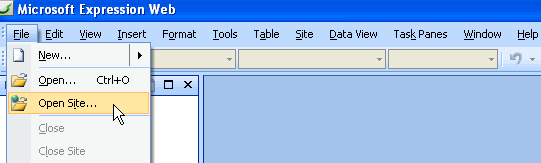
Then open Expression Web and go to File > Open Site and browse to where you unzipped the download to.
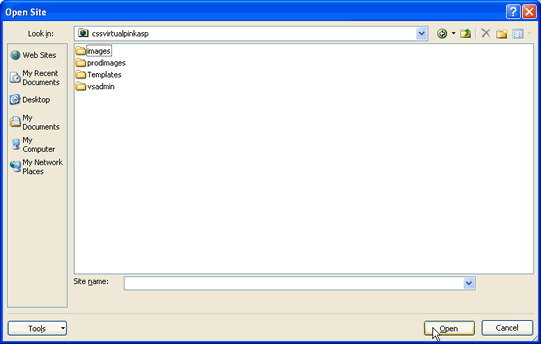
Then click on "Open"
You should see a list of files and folders that make up your store.
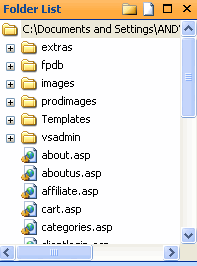
extras - this is where the original png files and blank gifs can be found
fpdb - (ASP version only) this folder contains your Access database
images - the default images used in the design
prodimages - the product images used on the product pages
templates - this contains the dwt file which will be used to make global updates to the design of the store
vsadmin - this contains all the admin files and when uploaded to your server, will be the location of your store control panel.
Global changes to the design can be made through the dwt file. This can be found in the Templates folder. Global elements are typically the header section, menu, news and footer. When you open the dwt file by double clicking on it you may see a box appear like this
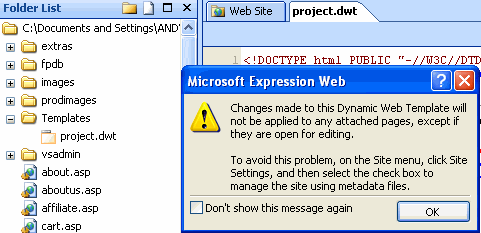
Even if this box doesn't appear you should go to Site > Site Settings and in the tab labeled General, make sure you have checked the box labeled Manage the Web site using hidden metadata files.
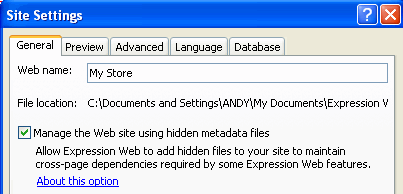
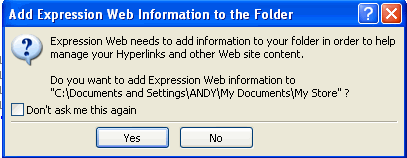
Once you have checked the box and clicked "OK" at the bottom of the window you may get another box like the one below. Click on yes.
You can now start making changes through the dwt file. Open the dwt file and make a small change. On saving the file you should receive a prompt like this
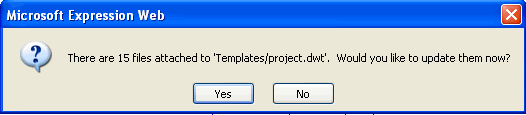
Select "Yes" and the change you made will now be applied to all the files that are attached to the template. You can now go on and make all the global design changes you need to.
If your pages don't update, move the dwt file out of the /templates/ directory and agree to update paths when prompted. Now make a change to the dwt file and the pages should be updated. Upload the changed files to the server, the dwt file doesn't need to be uploaded as it is just a design tool.
You will also need to make some design changes on a page by page basis. When you open the page you should see code that is editable with a white background and the code that is governed by the dwt and is not editable page by page has a yellow background.
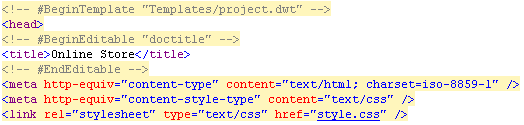
In design view the editable region is outlined in orange with the name of the editable region in a tab at the top.
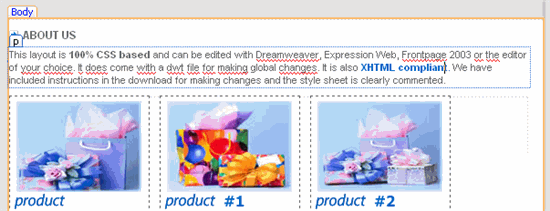
Now that you can see how the general design changes can be made, this is how you would proceed.
For help with uploading your store files via FTP, have a look at our Filezilla tutorial.

 Login Status