
Contact sales now: info@ecommercetemplates.com
Ecommerce Templates > General Help > The Control Panel > Email messages and formatting
Visual editing of email messages was introduced in Version 5.6.0, making it simpler to format the headers, footers and contents of the various emails generated by the store. This means they no longer need to be added to the vsadmin/includes file and that it is possible to take advantage of the CK HTML Editor for quick and easy formatting.
On the admin home page of the control panel there is link entitled Email Message Admin. Clicking on the link will bring you to the page to select the email you would like to edit.
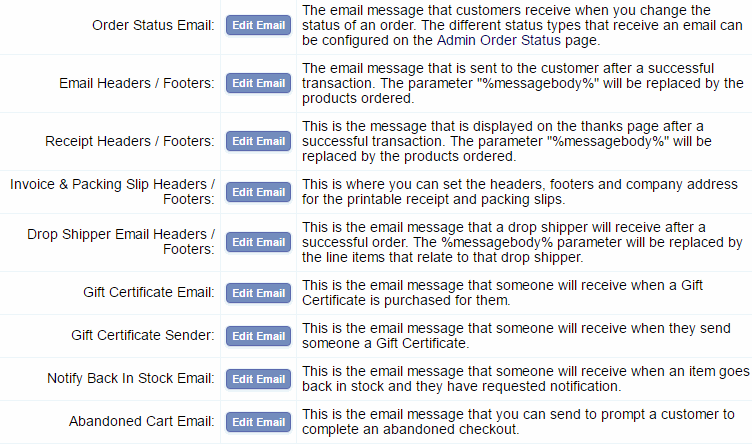
You will see a message here telling you if you have set
HTML Emails to on or off If you want to switch them on and send
HTML emails rather than plain text mails then you will need the
following addition
to vsadmin/includes.asp
htmlemails=TRUE
or vsadmin/includes.php
$htmlemails=TRUE;
If you are going to send HTML enriched emails then you may want to use the CK HTML Editor which gives you a wysiwyg interface. If you don't already have it installed then it is available for download on our downloads page.
In Version 6.8.1 we included the possibility to add your own css to personally style elements in the layout of the control panel. For example you may want to change or add styling to the invoice or packing slip layouts. To do this all you need to do is create a file called ectadmincustom.css and upload it to the vsadmin folder. This is your own custom file so won't be overwritten by updaters. Any styling you add here will take preference over the regular adminstyle.css file so is very useful for any admin personalization you might want to carry out.

The order status email can be sent out to customers when you change the status of their order through the admin orders page. You may want to inform customers for example that the status has changed from "Order Received" to "Packing" for example. To always send out an order status email you will need the following addition
to vsadmin/includes.asp
alwaysemailstatus=true
or vsadmin/includes.php
$alwaysemailstatus=true;
When you select Order Status Email from the drop down above you should see the following screen
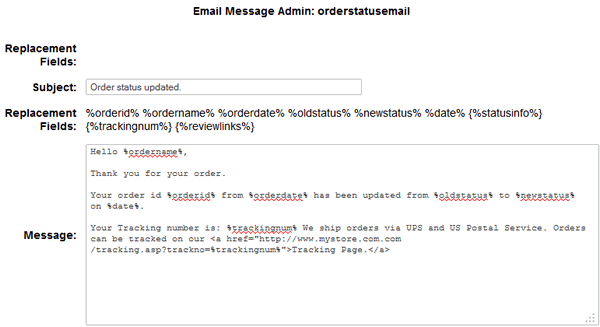
The screen explained
Subject: - This is the subject line of the order status email
Replacement fields: - These are the variables that can be used and will be replaced by the following:-
%orderid% - The order number
%ordername% - The name the customer used on the order
%orderdate% - The date the original order was made
%oldstatus% - The previous status of the order
%newstatus% - The new order status
%date% - The date the order status was updated
%statusinfo% - Any information added to the Status Info field of the order.
%trackingnum% - The tracking number added to the Tracking field on the order.
%reviewlinks% - The link to the product review featureNote: Those in {curly brackets} are conditional. Anything inside those curly brackets will not appear if the value itself is not set. For example if the order has no tracking number then it will be ignored.
Message: - This is the body of the email sent when the order status is changed.
In Version 6.2 the ability to recognize tracking numbers by their composition was introduced so you can add something like this to the order status email field
Track your package here http://www.yourstoreurl.com/tracking.asp?trackno=%trackingnum%
and your customer will be directed to the correct shipping carrier section of the tracking page.
You can use multiple tracking numbers for one order by putting tracking number text in curly brackets so that it is removed if it is not used eg
{Your Tracking number is: %trackingnum%}
{Additional Tracking number: %trackingnum%}
{Additional Tracking number: %trackingnum%}
{Additional Tracking number: %trackingnum%}
{Additional Tracking number: %trackingnum%}
{Additional Tracking number: %trackingnum%}
You can have as many as you like but the tracking number field is set to 255 characters in the database so that should allow for about a dozen tracking numbers.
It is also possible to specify only part of the email to be sent out depending on the order status id. To do this you would use something like this in the field above
{%statusid1% Email message only for status id 1
}
{%statusid2% Email message only for status id 2
}
{%statusid3% Email message only for status id 3
}
{%statusid4% Email message only for status id 4
}
In this example, when you changed the status to the one corresponding to the order status 4, the customer would receive the message you have entered in that line, Email message only for status id 4. The status ids can be found in the admin order status page.
This is where you can add a header and footer to the email that is sent out to a customer following a successful purchase. The header and footer will be included on all confirmation emails so if you want to a different combination depending on the payment method chosen then you would need to edit them separately through the payment provider admin pages.
When you select Email headers and footers you should see a screen like this
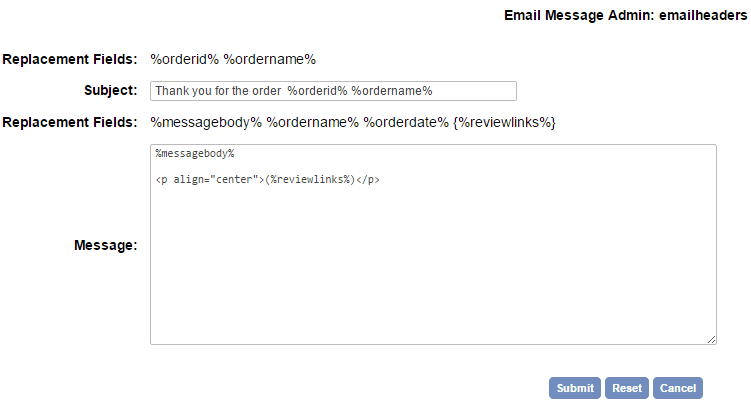
The screen explained
Replacement Fields:
%ordername% - This is the name the customer used on purchase and can be included in the email subject
%orderdate% - The date the order took place.
%orderid% - The id of the order.
%reviewlinks% - The link to the product review submittal page
Subject: - This is the subject line of the email confirmation
Replacement Fields: %messagebody% - This is the main body of the email which contains the summary of the buyers details, items ordered, shipping, tax and grand total etc.
Message: - Anything you add here before %messagebody% will be used for the header of the confirmation mail. Anything added after %messagebody% will be used as the footer of the confirmation email. You shouldn't remove the instance of %messagebody%.
You can add HTML to format the header and footer. From version 5.8 the formatting of the email became a lot more flexible. If you would like your email to appear like this
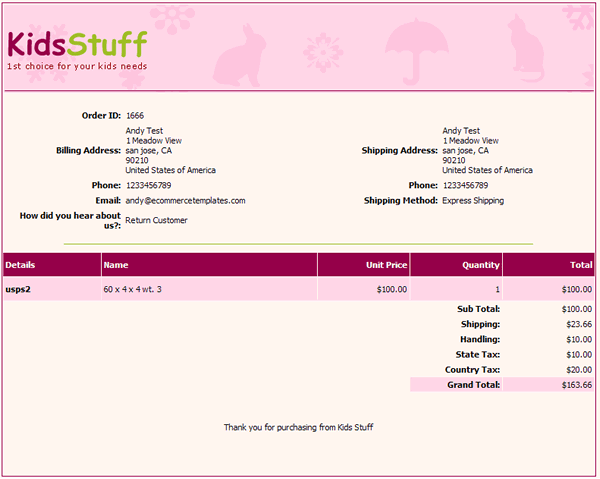
Add the following to the Message field above.
<style type="text/css">.receiptbody{background-color:#FFF6F2;}.receiptoption{background-color:#FFE6E6;}.receipthr{height:
0;border-width: 1px 0 0 0;border-style: solid;border-color: #9EBE25;}.receipthl{background-color:#FDD6E8;}.receiptheading{background-color:#980048;color:
#FFFFFF;font-weight:bold; }</style>
<div style="border: 1px solid rgb(152, 0, 72); margin: 0pt auto; width:
100%;">
<table width="100%">
<tr>
<td height="114" background="http://www.yourstoreurl.com/images/rcheader.gif"><img
height="64" width="196" alt="" src="http://www.yourstoreurl.com/images/rclogo.gif" /></td>
</tr>
</table>
<br />
%messagebody%
<br />
<p align="center">Thank you for purchasing from Kids Stuff</p>
<br />
<br />
</div>
There is an explanation of the css classes available here.
This is where you can format the thanks page following a successful transaction.
When you select Receipt header you should see a screen like this
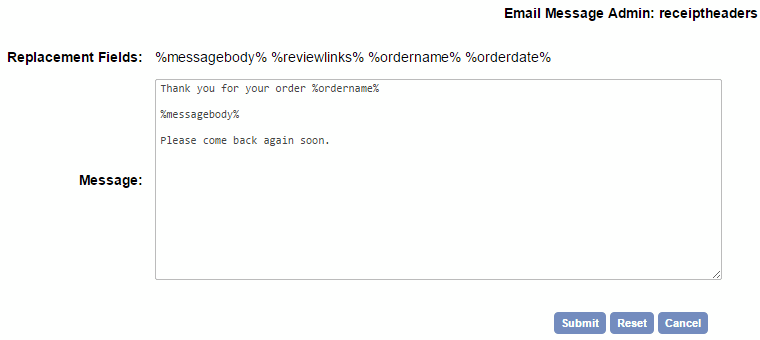
The screen explained
Replacement Fields:
%ordername% - This is the name the customer used on purchase.
%orderdate% - The date the order took place.
%messagebody% - This is the main body of the thanks page which contains the summary
of the buyers details, items ordered, shipping, tax and grand total etc.
Message: - Anything you add here before %messagebody% will be used for the header of the thanks page. Anything added after %messagebody% will be used as the footer of the page. You shouldn't remove the instance of %messagebody%.
You can add HTML to the header and footer along with some css for styling the layout. If you would like a thanks page layout like this
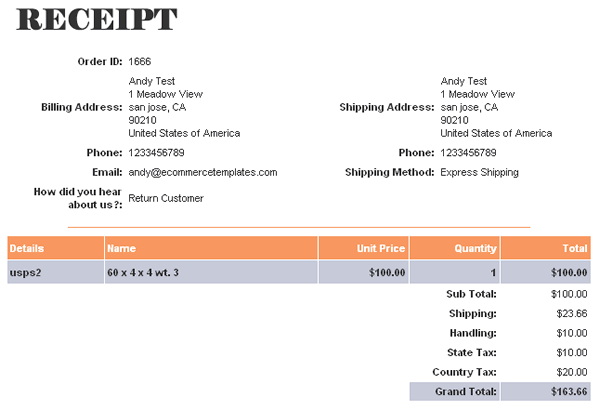
Add the following to your css file
.receipthr{height: 0;border-width: 1px 0 0 0;border-style:
solid;border-color: #F89961;}
.receipthl{background-color:#9FB5FF;}
.receiptheading{background-color:#F89961;color: #FFFFFF;font-weight:bold;
}
... and this to the admin message receipt header field
<img height="64" width="206" src="http://www.yourstoreurl.com/images/receipt.gif" alt="receipt" />
%messagebody%
The available css classes are explained here.
The invoice and packing slip headers and footers were originally defined in vsadmin/includes.asp or vsadmin/includes.php and were moved to the email messaging admin page in Version 6.6. You can choose to use the same header and footer for both or set them differently by selecting "Set Packing Slip Headers Separately".
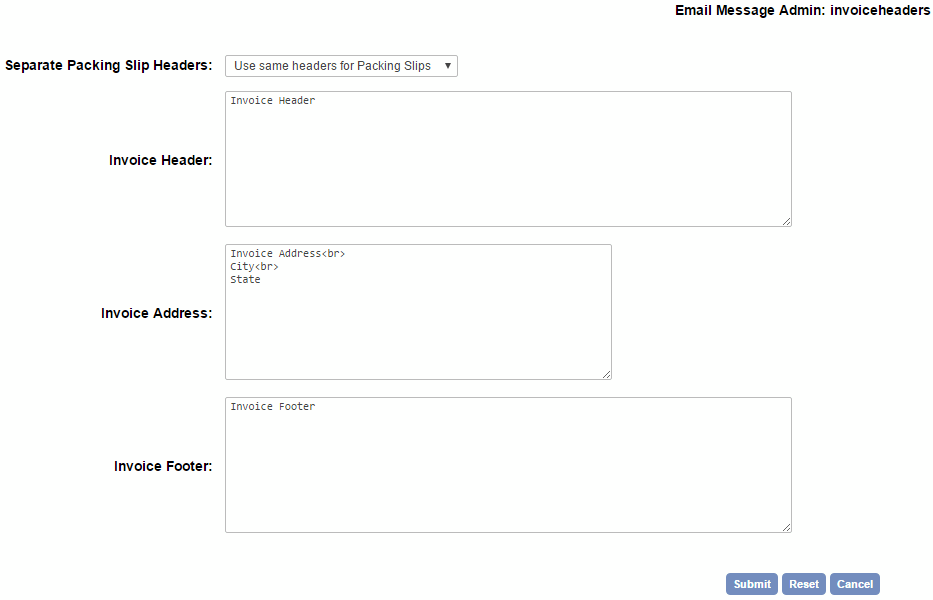
If you are using the dropshipper feature then you may want to include a header and / or footer in the email that the dropshipper receives when an order is placed on your store for one of their marked items. It is also possible to have different headers and footers depending on the payment method chosen, in this case you would want to make the edits in the payment provider admin page.
When you select Dropshipper headers and footers you should see a screen like this
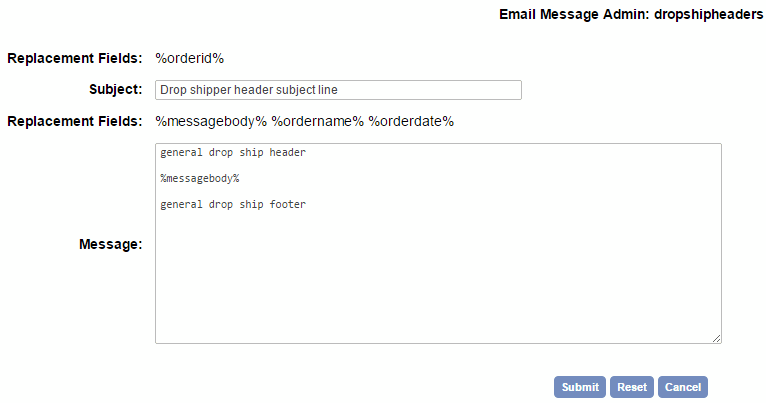
The screen explained
Subject: - This is the subject line of the email that the drop shipper receives
Replacement Fields:
%messagebody% - This is the main body of the email which contains the summary of the order details received by the drop shipper.
%orderdate% - The date the order took place.
Message: - Anything you add here before %messagebody% will be used for the header of the dropshipper mail. Anything added after %messagebody% will be used as the footer of the dropshipper email. You shouldn't remove the instance of %messagebody%. You can add HTML to format the header and footer.
If you are using the Gift Certificate feature you can format the email sent to the recipient of the gift certificate.
When you select Gift certificate email you should see a screen like this
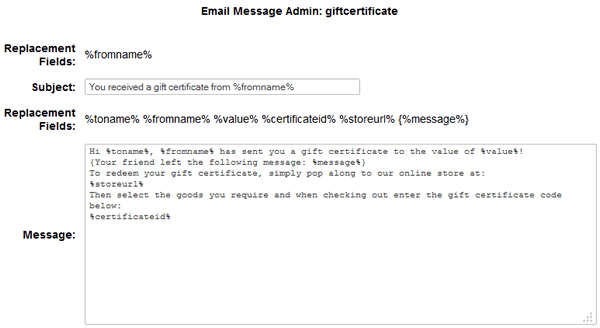
The screen explained
Replacement fields: %fromname% - This is the name of the person who originally purchased the gift certificate and can be added to the subject line of the email.
Subject: - The subject line of the email received by person the gift certificate was purchased for.
Replacement fields: - These are the variables that can be used in the email and will be replaced by the following:-
%toname% - The name of the person who will receive the gift certificate email
%fromname% - The name of the person who originally purchased the gift certificate
%value% - The monetary value of the gift certificate purchased
%certificateid% - The unique code that needs to be entered on checkout to redeem the certificate
%storeurl% - The URL of the store where the certificate can be redeemed
%message% - The message that the buyer entered on purchasing the gift certificateNote: Those in {curly brackets} are conditional. Anything inside those curly brackets will not appear if the value itself is not set. For example if the email has no message then it will be ignored.
Message: - This is the body of the email sent to the recipient of the gift certificate. This can be formatted with HTML.
This is the confirmation email that the purchaser of the Gift Certificate will receive.
When you select Gift certificate sender you should see a screen like this
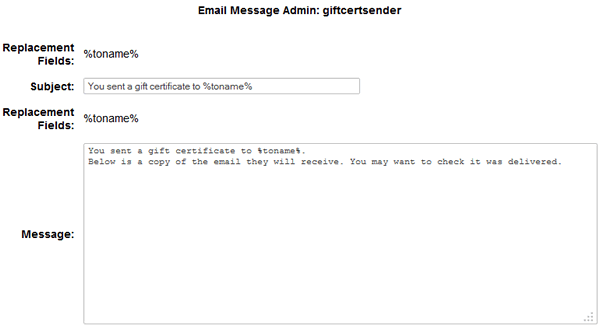
The screen explained
Replacement fields: %toname% - This is the name of the person who will receive the gift certificate and can be added to the subject line of the email.
Subject: - The subject line of the email received by the person who purchased the gift certificate.
Replacement fields: %toname% - This is the name of the person who will receive the gift certificate and can be added to the body of the email.
Message: - This is the email that the sender of the gift certificate will receive. You can edit the introduction and this will be followed by a copy of the text received by the recipient of the gift certificate. You can add HTML to the message for formatting.
This is the email received when stock has been replenished and the customer has chosen to be contacted.
When you select Notify back in stock email you should see a screen like this
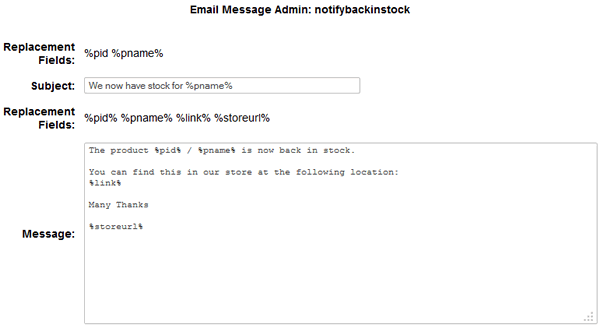
The screen explained
Replacement fields:
%pid% - The product reference the customer is enquiring about.
%pname% - The name of the product that the customer wants to be notified about.
Subject: - The subject line of the email received by the person who requires notification.
Replacement fields:
%pid% - The product reference the customer is enquiring about.
%pname% - The name of the product that the customer wants to be notified about.
%link% - The link to the product requested.
%storeurl% - The link to the home page of the store.
Message: - This is the email that the person requesting notification of stock being available will receive. You can add HTML to the message for formatting.
This is the email that is sent to recover orders which haven't been completed. Full details of how to use this feature can be found on our orders help page.
When you select Abandoned cart email you should see a screen like this
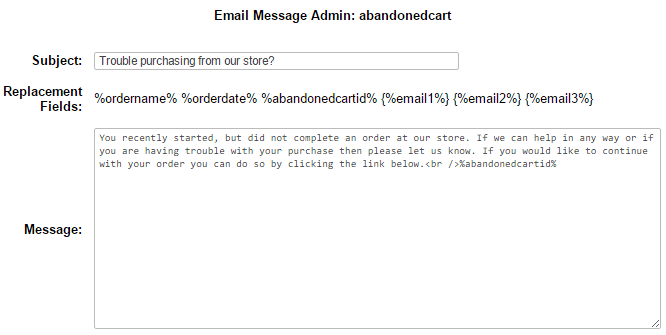
The screen explained
Subject: - The subject line of the email received by the customer who abandoned that cart.
Replacement fields:
%ordername% - The name of the customer.
%orderdate% - The date of the original order.
%abandonedcartid% - The link to the saved cart with the original cart contents populated.
%email1% - The content of the first email sent to the customer.
%email2% - The content of the second email sent to the customer.
%email3% - The content of the third email sent to the customer.
You can send the same email up to three times but most people we assume would want to change the copy of the email each time. If you want to specify different content for each email you would add something like this to the Message field
{%email1% You recently started, but did not complete an order at our store. If we can help in any way or if you are having trouble with your purchase then please let us know. If you would like to continue with your order you can do so by clicking the link below.<br />%abandonedcartid%}
{%email2% Email message only for the second email to the customer<br />%abandonedcartid%}
{%email3% Email message only for the third email to the customer<br />%abandonedcartid%}
Remember to enclose each in curly brackets. One thing you may want to consider is including a coupon code in the second or third email, remembering to first set up the coupon in the admin discounts page.