
Contact sales now: info@ecommercetemplates.com
Ecommerce Templates > General Help > The Control Panel > Admin products page
This is where you will add your product information to the store. The database will have already been populated with some sample products and categories and we advise taking some time to look through those to see how things fit together. You will obviously need to delete these at some point and we recommend deleting first the products and then the sample categories, simply deleting the category will not cause the deletion of the products they hold.
The first screen you will see when clicking on the Edit Products link should look something like this. To view all the products on your store, click on "List Products". If you are using the Stock Management feature then you can view all out of stock products by choosing "Out of Stock", those products you have chosen not to display can be viewed by selecting "Hidden Products". You can also choose how to list the products in the admin by product id, name, price etc.
If you want to download a .csv file with a listing of products and stock levels then select "Stock Inventory". To view the full inventory and full product information then choose "Product Inventory" from the drop down. If you need to download a csv file of the products returned by a search or filter applied, choose "Filtered Inventory" (Version 6.6 required). In Version 6.1.1 an image download to csv file was made available...more details
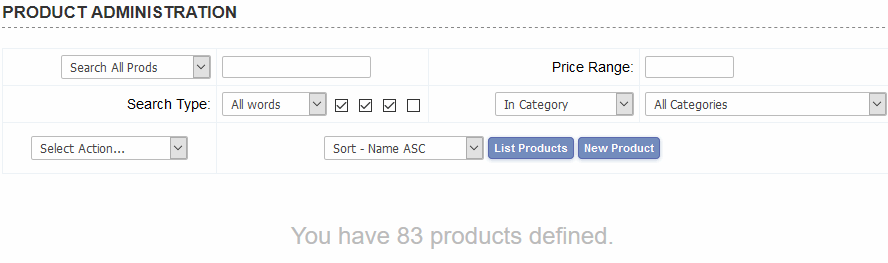
If you have a large number of products on your store then you can refine the product listing by using the product search feature. To search via price ranges you can use this kind of set up
-50
. . . for all products up to $50
10-50
. . . for products between $10 and $50
50-
. . . for products above $50
Once you have your product listing you should see a screen similar to the one below.

Products shown in red will denote that they are out of stock (if using stock management). The number in brackets refers to the number of items left in your inventory. Use the quick entry drop down on the left hand side to quickly update the product values. If you want to add the increase all the products by the same value, place the number in the field next to the "Add" button. Changes won't be made until you hit the "update button at the bottom of the list.
If you see a product with a red asterisk next to it (*) then it means that the category the product has been assigned to has been deleted. If you are using any discounts or coupons at product level then these can be assigned here once the discount has been set up in the discount admin page.
Click on the Related button (Rel) to set up related products for the cross selling feature.
Click on the Package button (Pak) to add products to packages / bundles.
Click on the Alt ID button (Alt) to use the Product Alt Id Multiplier.
To modify an existing product, click on the "M" button, to clone an existing product, click the "C" button. To delete click on "X".
Choose from the Quick Entry drop down menu to turn on / off / edit product elements from the one screen without having to go into each individual product page.
The Select Action drop down menu allows you to download inventory to a csv file, check table data for manufacturers / products attributes and regenerate the stats for the Number of Sales sort option.
Below we have laid out some help with the various fields available when setting up a new product. Fields marked with an asterisk (*) are obligatory.
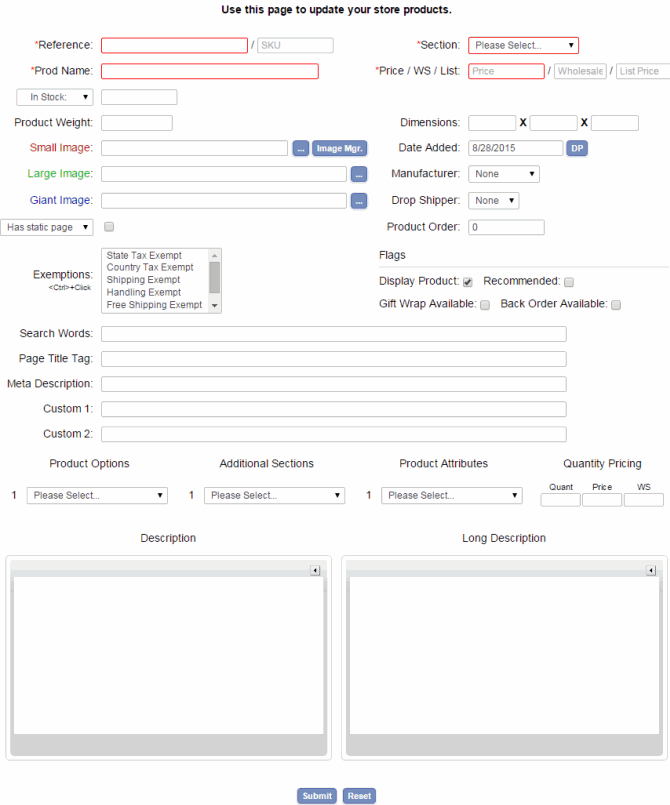
The product ID must be a unique identifier. To show the product ID on your product page you can add this to includes.asp or includes.php
The name of your product.
Add the SKU if you have one, for example if you sell books this could be the ISBN number. For it to show on your products page you'll need this addition to vsadmin/includes.asp or includes.php
Choose from the categories you have set up as to where you want to place the product. Use the Additional Sections option below to place your product in more than one category.
The price of the product. If you want to use a text message instead of a price then set this field to zero and make this addition to includes.asp or includes.php
This is used in conjunction with the customer login feature and will be the price that logged in customers will see.
This will show a price with a strikethrough like this List
Price: $50.00 on the product and product detail pages. You can add a "You save" note to the display with this addition to vsadmin/includes.asp
yousavetext="<br />You save %s"
or vsadmin/includes.php
$yousavetext="<br />You save %s";
You can add a css class to style that like this <span class='yousave'>You save %s</span>
If you are using the stock management feature then you will see a drop down menu here. Choose in stock to specify the number of items you have in stock. Choose by options if you want set the stock management by product options and then edit the stock level through the product option admin page. If you are not using Stock Management then you will see a box labeled Sell Button, checking that will show a buy button next to the product, unchecking it will show an Out of Stock message. This message can be edited in vsadmin/inc/languagefile_en.asp / .php - copy it to vsadmin/includes.asp / .php so it doesn't get overwritten by updaters.
The weight of the product that enables the calculation of shipping. This should be expressed as a decimal.
This is the path to the image that appears on the product page. The default location for the product images is the /prodimages/ folder but you can change that. Click on the ... button to browse your hard drive and upload the image you need. For the ASP version you will need to check with your host that the component "ASPupload" is installed on the server and that you have this setting in vsadmin/includes.asp - useaspuploadforimages=TRUE
Click on the "More" button to show extra pictures on the products page
This is the path to the image that will appear on the product detail page. Click on the "More" button to show extra pictures on the product detail page.
This is the path to the image that will be linked from the product detail page. Click on the "More" button to show extra pictures. The images can be used in conjunction with Magic Toolbox or the images can either appear on a new page or in a pop-up window. To configure these you will need an addition to vsadmin/includes.asp or vsadmin/includes.php
If you want the giant image to appear on a new page as in the example on our demo store (click on enlarge), add the following to your css file to get the same formatting
div.giantimg{
margin-top:22px !important;
margin-bottom:22px !important;
}
#giantimgspan{
padding-top:20px;
}
img.giantimage{
border:0px;
}
span.giantimgname{
font-size:26px !important;
}
input.giantprevimg, input.giantnextimg{
margin:12px;
background:#f1f1f1;
color:#E06A1E;
border-radius:4px;
text-shadow: none;
padding:4px 12px;
border:1px solid #ccc;
font-size:13px;
font-weight:normal !important;
cursor:pointer;
}
input.giantprevimg:hover, input.giantnextimg:hover{
color:#000;
}
If you choose to use the pop up window to display the giant images, you may want to use the following css classes
div.giantimgdiv - the main container
div.giantthumbcontainer - the container for the number navigation and thumbnails
div.giantthumbs - the container for all the thumbnails
div.giantthumb - the container for individual thumbnails
img.giantthumb - the thumbnail image properties
div.giantimgname - the product name
div.giantimg - the container for the giant image
img.giantimage - the giant image properties
Select from the manufacturers set up in the Product Attributes admin page. This can be included on the search page to narrow down search options and be shown on the products page. They can also be selected as part of the product attributes in the top filter bar and side filter bar (if installed) ASP version - PHP version.
Select the drop shipper that is associated to the product
... more
details
more
details
Only check the Has Static Page box if you have set up a static product
detail page. The product detail page link will take the form of.
. .
the_product_name.asp
. . . where the page name will be made of the product name, in lower
case with spaces replaced by underscores and non alphanumeric characters
removed. You will need to set up the static page previously following
our help page on search
engine friendly features.
The Has Static URL is used in conjunction with the extension less page URLs. You can enter the name of the page you want to here and will replace the default URL based on the product name
... more
details
Enter a value here for ordering the products on the publicly viewable product pages. These can be in ascending or descending order depending on the setting in the Deafult Product Sort Order in the main admin settings page.
Select any exemption that apply to the product. Use <Ctrl> + click for multiple selections.
Tick the box here if you would like this product to be shown as recommended when any other product is added to cart.
Tick the box here if you would like to give the customer the choice of adding gift wrapping to their product order. The Choice to select gift wrapping will appear in the cart and the text comes with its own css class for formatting. The charge can be made for gift wrapping service by an addition to vsadmin/includes.asp - giftwrappingcost=0.8 or vsadmin/includes.php - $giftwrappingcost=0.8;
Any product with gift wrap associated will be highlighted in green in the admin orders page.
If you want the buy button to change to a "back order" labeled button when an item goes out of stock, check the box here. The customer can still add the product to cart but will be warned on the screen that the item is not in stock and has been put on back order for them. This will also work with product options that are out of stock. You can also use this feature without stock management being turned on.
This is where you can place keywords for the product search that don't appear in the product name, id or description. They can be separated by a space and won't appear on the page itself unless you choose to use the keyword tag feature in includes.asp or includes.php. In that case they will appear linked to the search results based on that keyword. A great way for users to find grouped products and for search engines to find relevant keywords on the product detail page.
This is where you can enter the text that will appear in your page title of the product detail page if you are using the search engine friendly features. We would recommend a length of no longer than about 60 characters.
... more
details
This is where you can enter the text that will appear in the meta description of the product detail page if you are using the search engine friendly features. We would recommend a length of no longer than about 160 characters.
... more
details
These are available if you are using the css layout for the products detail page and allow you to show up to 3 custom fields on the detail page. You can assign labels for each field through includes.asp or includes.php. Please note the maximum number of characters permitted for the ASP version is 255, for the PHP it is 2056.
Select the number of product options
that are to be associated to a product... more details
If you would like your product to appear in more than one category then select the number of additional sections here and choose from the available categories.
If you are using the product filter bar, this is where you can assign product attributes to your products... more details
This is where you can add price breaks on a per product basis... more details
This is the description that will appear on the product page. You can add HTML here to format the text to your requirements.
There is an HTML editor to make formatting even simpler. To enable the editor you will need this addition to includes.asp or includes.php and the files available from our downloads page.
This is the description that will appear on the product detail page. You can add HTML here to format the text to your requirements and you can use the HTML editor as above.
Read our article on writing great product descriptions.
Please Note
If a product has been taken off-line the product detail page will correctly give an HTML 404 response so that search engines know to remove the product detail from their indexes. However from Version 6.6 a link will also be given to the old product's category so that the customer can search for similar products.
In Version 6.7 you can define a minimum quantity of a particular product that a customer must purchase before being able to check out. If the quantity threshold is not met a warning will appear in the cart and the cart quantity field will be highlighted.
The quantity is defined in the Quick Entry drop down of the product admin listing.
You can add an automatic message to the product and detail pages if you are using the css productpagelayout / detailpagelayout feature. Simply add minquantity to the list there to generate the message "This product has a minimum quantity of %quant% items.".