
Contact sales now: info@ecommercetemplates.com
Ecommerce Templates > ASP Version Help > Payment Processors > 2Checkout

2Checkout.com (2CO) is a worldwide leader in payments and e-commerce services. 2CO powers online sellers with a global platform of payment methods and world-class fraud prevention service on safe, secure, and reliable PCI-compliant payment pages. Merchants can accept Visa, MasterCard, AMEX, Discover, PayPal, Diner's Club, JCB and Debit cards (in the U.S.) today from 2Checkout's fully hosted payment pages, and through one, easy-to-use solution and with only one contract to sign. In addition, 2CO provides call center support services for your customers enabling support via phone, online chat and email. The system is translatable in 15 languages, support 87 currencies, and is available for sellers and buyers in over 200 countries. The service is quick to setup and has zero upfront costs; start selling online today! Follow these three simple steps to set up your FREE account today:
1. Visit www.2checkout.com
2. Click the orange APPLY NOW button on the right side of the page
3.
Complete the application by entering your business and contact information
Click here to create an account with 2Checkout.
Once you have created your account, log into your store control panel, choose Edit Payment Providers and click modify for 2Checkout. Make sure the Enabled box is checked, and enter 2Checkout account number and MD5 Hash. You should not enter your secret 2Checkout password.
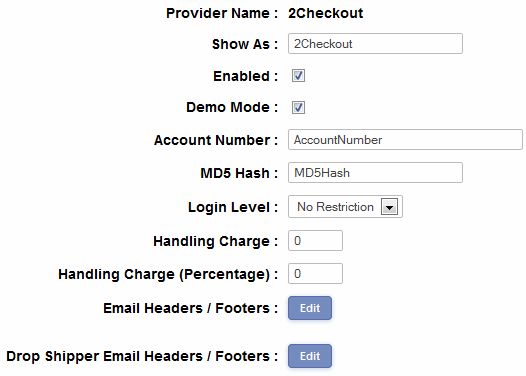
In the "Show As" field you can enter the text of your choice as this will be shown on checkout. Typically you would enter the payment provider name or simply "Credit Card"
Now log into your 2Checkout account. Click on the "Account" tab and Site Management subtab.
Under the heading "Direct Return" select the option Header Redirect (Your URL)
Under the heading "Approved URL" enter the address of your thanks page in the available field eg https://www.yourstoreurl.com/thanks.asp
Finally make sure your account status with 2CO is both "eligible for payments" and "approved to sell".
That's about all the set up entails.
NOTE
2Checkout are now very strict about text that
may appear / may not appear on your site regarding your relationship
with 2Checkout. You can change the text of the "Check totals and
proceed to process payment." in your language file. However,
some people will use more than one payment system,
and would not want 2Checkout specific text appearing for other
payment
processors.
In that case change this line in your vsadmin/inc/languagefile_en.asp
. . .
xxChkCmp="Check totals and proceed to process payment."
. . . to
if Request.Form("payprovider")="2" then
xxChkCmp="2Checkout specific blurb<br>And a disclaimer
etc."
else
xxChkCmp="Check totals and proceed to process payment."
end if
2Checkout allows you to receive orders via Visa, MasterCard, Discover, American Express, Diners, JCB and debit cards with the Visa, Mastercard logo.
Once a customer has added an item or items to their shopping cart and clicked on "Checkout" they are taken to a form to enter their personal details, once this is completed the customer can check their purchase total, and if they are in agreement will be forwarded to the secure 2Checkout server to give their credit card details. Most of the 2checkout form is pre-populated by the details given on the store form so it only takes a moment to add the credit card number in a secure environment, and be sent back to the store again.
When the transaction has gone through, the buyer will receive a confirmation email from 2Checkout and the seller will be informed that there has been an order on the store.
Please do read our guide here on credit card fraud.
For more information, rates and support, please visit the 2Checkout website.