
Contact sales now: info@ecommercetemplates.com
Ecommerce Templates > ASP Version Help > Payment Processors > PaymentSense

You will need a valid SSL certificate for this module to work as intended. Ensure this is installed on the server before beginning the installation.
Once you have created your account with PaymentSense the first thing you will need to do is download the file paymentsenseasp.zip from our downloads page. The zip file contains two files, customppsend.asp and customppreturn.asp. These contain all the information you need for the Hosted PaymentSense Gateway integration for Ecommerce Templates. Unzip the download and place the two files in your vsadmin/inc/ folder, overwriting the existing files - agree to overwrite if prompted.
Make sure you have uploaded these two files to your server and open your Ecommerce Template admin payment providers page. Locate the payment provider listed as "Custom" and click on the Modify button. Fill in the details as shown below:
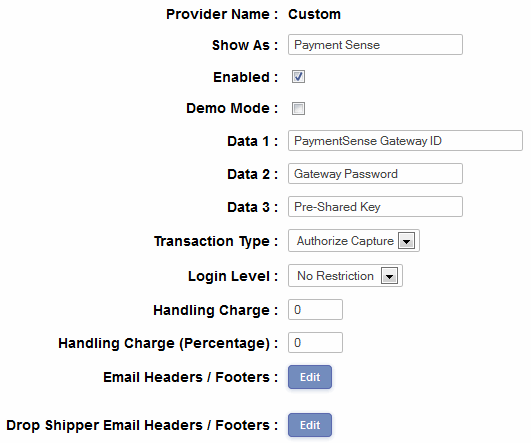
Data 1: Enter your PaymentSense Gateway ID
Data 2: Enter your PaymentSense Gateway Password
Data 3: Enter your Pre-Shared Key (as found in the PaymentSense Merchant Management System - under account information tab)
Transaction Type: Select "Authorize Capture" ("Authorize Only" can be used for "PreAuth" transactions)
Login Level: Select "No Restriction"
Please do read our guide here on credit card fraud.