
Contact sales now: info@ecommercetemplates.com
Ecommerce Templates > ASP Version Help > Payment Processors > Authorize.Net

Ecommerce Templates supports Authorize.net integration methods, AIM (Advanced integration method), Accept Hosted (Originally SIM) and SIM (now deprecated). If you use the AIM method you will need an SSL certificate, either your own or shared from your host. This is because the credit card details are taken on your site over a secure (https) connection. You don't get to see the credit card details and they are not stored in your database. For refund / reporting cases, the last four digits will be available to you through the authorize.net control panel. Using the Accept Hosted / SIM method means that the customer will be transferred to the authorize.net secure payment form on their servers to enter the credit card details so a SSL certificate is not required but recommended.
If you choose to use Authorize.net (AIM), it is possible to enroll in the Verified by Visa program.
You will need an ssl certificate installed on your server
Now, in your Ecommerce Template admin, go to the Payment Providers section, click "Modify" for Authorize.Net AIM and enter your API Login ID and Transaction Key where indicated. Make sure the system is set to "Enabled" and is in demo mode to allow you to test easily.
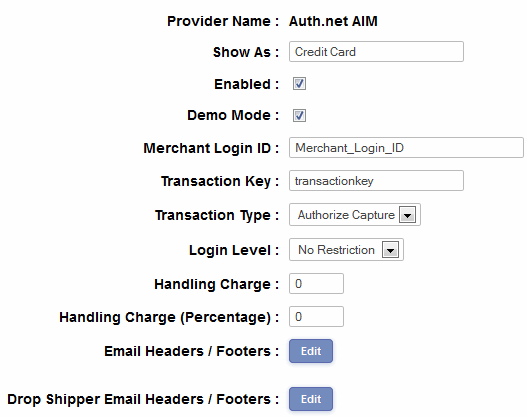
You should now be ready to run some tests through the system. To test, use the following visa card number with any date in the future. 4007000000027
When you're ready to go live, don't forget to take Authorize.Net out of demo mode in your Ecommerce Plus Template admin section.
Now, in your Ecommerce Template admin, go to the Payment Providers section, click "Modify" for Authorize.Net SIM and enter your API Login ID, Transaction Key and Signature Key where indicated. Make sure the system is set to "Enabled" and is in demo mode to allow you to test easily. Set the Integration Method to "Use Accept Hosted"
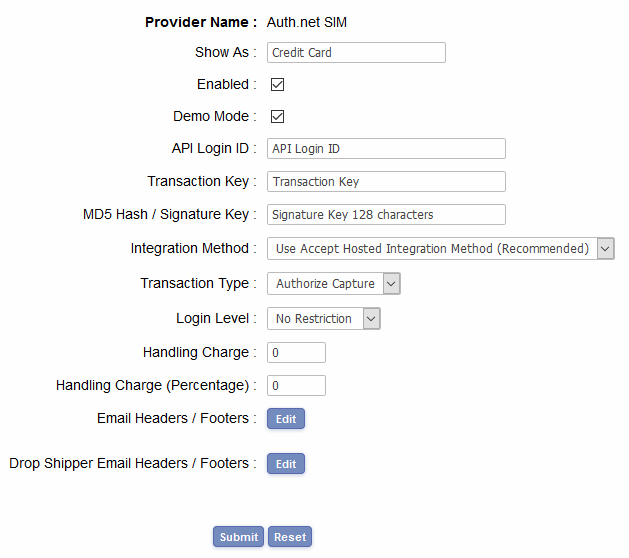
You should now be ready to run some tests through the system. To test, use the following visa card number with any date in the future. 4007000000027
When you're ready to go live, don't forget to take Authorize.Net out of demo mode in your Ecommerce Plus Template admin section.
Included with your store template there is a special file in the admin directory called wpconfirm.asp. The function of this file is to interpret the response from Authorize.Net. You need to enter the URL of this file in your Authorize.Net admin section to indicate that it is a valid URL. To do this:
Now, in your Ecommerce Template admin, go to the Payment Providers section, click "Modify" for Authorize.Net SIM and enter your API Login ID and Transaction Key where indicated. Make sure the system is set to "Enabled" and is in demo mode to allow you to test easily.
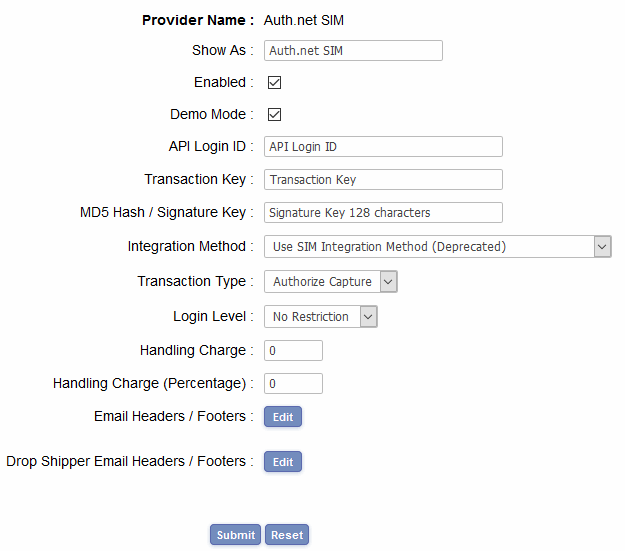
You should now be ready to run some tests through the system. To test, use the following visa card number with any date in the future. 4007000000027
When you're ready to go live, don't forget to take Authorize.Net out of demo mode in your Ecommerce Plus Template admin section.
If you receive an error such as "The referrer, relay response or receipt link URL is invalid" or an error number 14, then please check that the Store URL in your Admin Main page is correct. The Store URL should be the URL of the base of your store. If it´s not in a subdirectory it would be http://www.yoursite.com. If it is in a subdirectory then you will need to add that, for instance . . . http://www.yoursite.com/store/
Do remember to change http://www.yoursite.com for the actual URL of your site. You'll be surprised how many trip up on that one.
If you receive the error "(13) The merchant login ID or password is invalid or the account is inactive." then check that in the Merchant Login ID under the Authorize.net payment providers page of the Admin Control Panel you have entered the Login number not the Merchant ID number.
If you receive an error similar to Type mismatch: 'vsRESULT' then log into your authorize.net merchant control panel and click on Settings and Profile -> Direct Response (under the Transaction Response heading) -> Then under Direct Response Delimiter make sure "Field Encapsulation Character" is set to nothing.
Please do read our guide here on credit card fraud.
More information
If you want to accept echecks through authorize.net (AIM) then you will need this addition to includes.asp. We have some more features for the authorize.net set up here.