
Contact sales now: info@ecommercetemplates.com
Ecommerce Templates > PHP Version Help > Payment Processors > eway

Launched in 1998, eWAY is a leading international payment gateway that accepts payments in Australia, New Zealand, Singapore, Hong Kong and Macau and which now takes 25% of Australia's online payments.
As of Ecommerce Templates v7.2.4 the eWay Rapid API has been implemented as part of the core cart so no add-ons or extra files are needed.
Once you have created your account with eway go to your admin payment provider page and click on "Modify" for eWay.
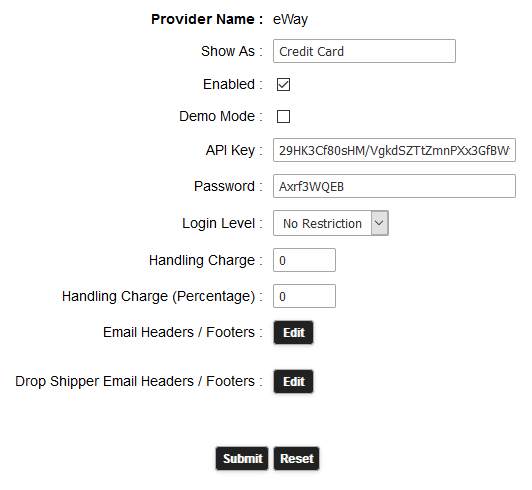
The ECT shopping cart is integrated via the eWay Rapid API, so for this you need your Rapid API Key and Password available through your eWay account. Once you have entered these details, and made sure the "Enabled" checkbox is checked, you are ready to go.
Please do read our guide here on credit card fraud.
That's all there is to it really - any comments on the set up can be posted on our Support Forum.